
Rho offers more than just employee cards—you can also set up dedicated Vendor Cards. These cards are designed specifically for vendor payments, making it simple to keep your business spend organized.
Creating a Vendor Card
You can create Vendor Cards individually or in bulk, depending on your needs, with just a few clicks:
From the Cards Tab
Navigate to the Cards Tab from the navigation.
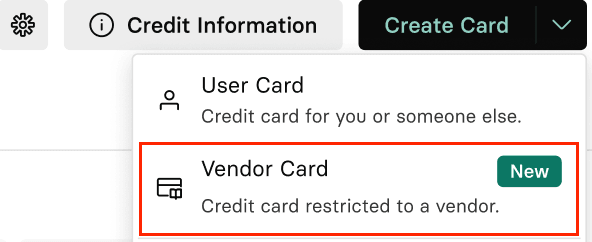
Select Create Card, then choose Vendor Card.
On the setup screen:
Select your Vendor: Select an existing vendor from the list, or type a new name to create one automatically when the card is created.
Configure Settings: Adjust International spend (ON by default), and optional spend controls like merchant restrictions and usage dates.
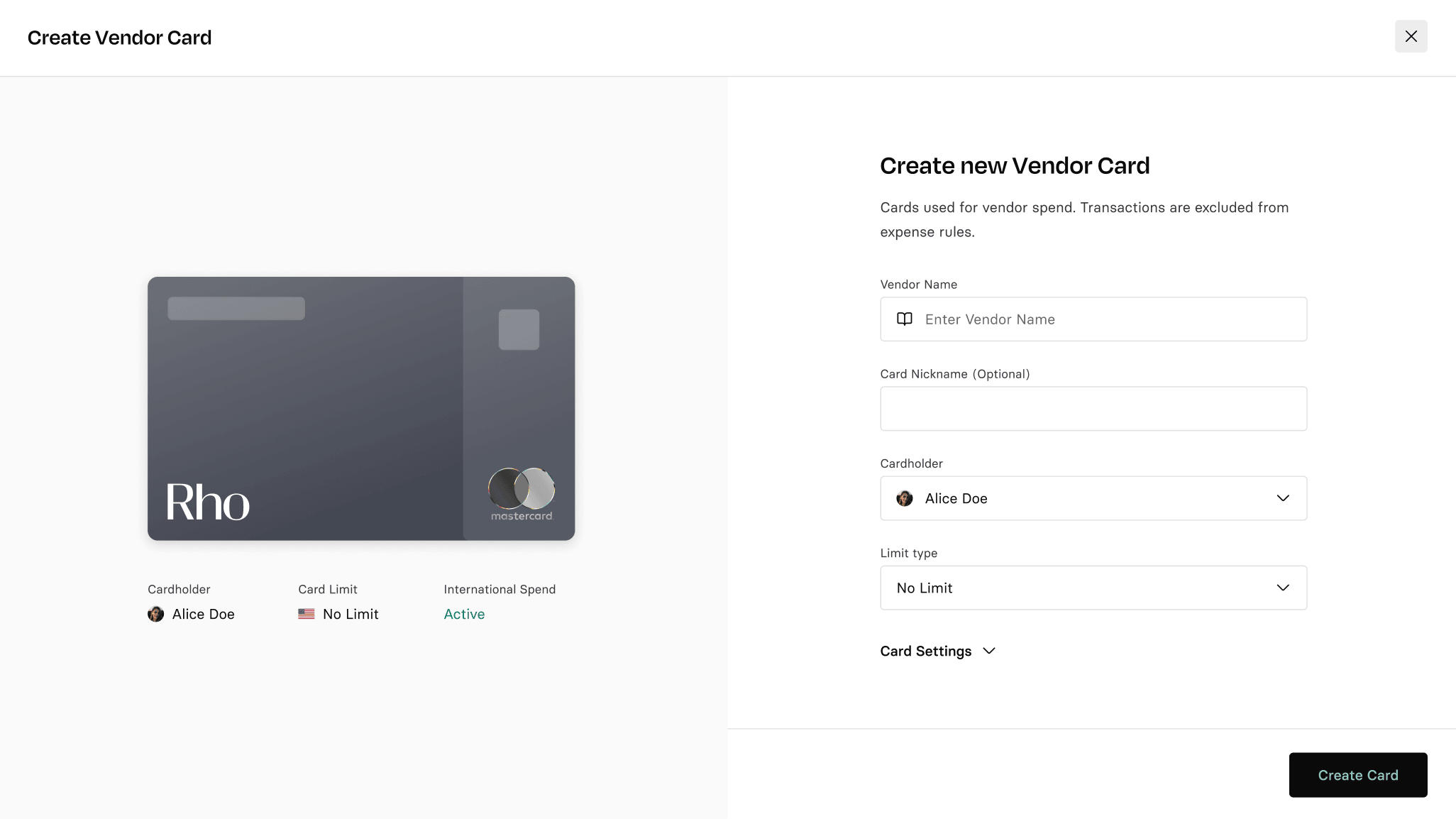
Click Create Card, and you will see a confirmation that your card has been created.
From the Vendors Tab
In addition to creating vendor cards through the Cards tab, you can now create a single-use vendor card directly from the vendor creation flow:
Navigate to Vendors > Click Add Vendor
Complete the vendor details as needed
Under the Payment Account dropdown, select Single-use vendor card
Finish creating the vendor
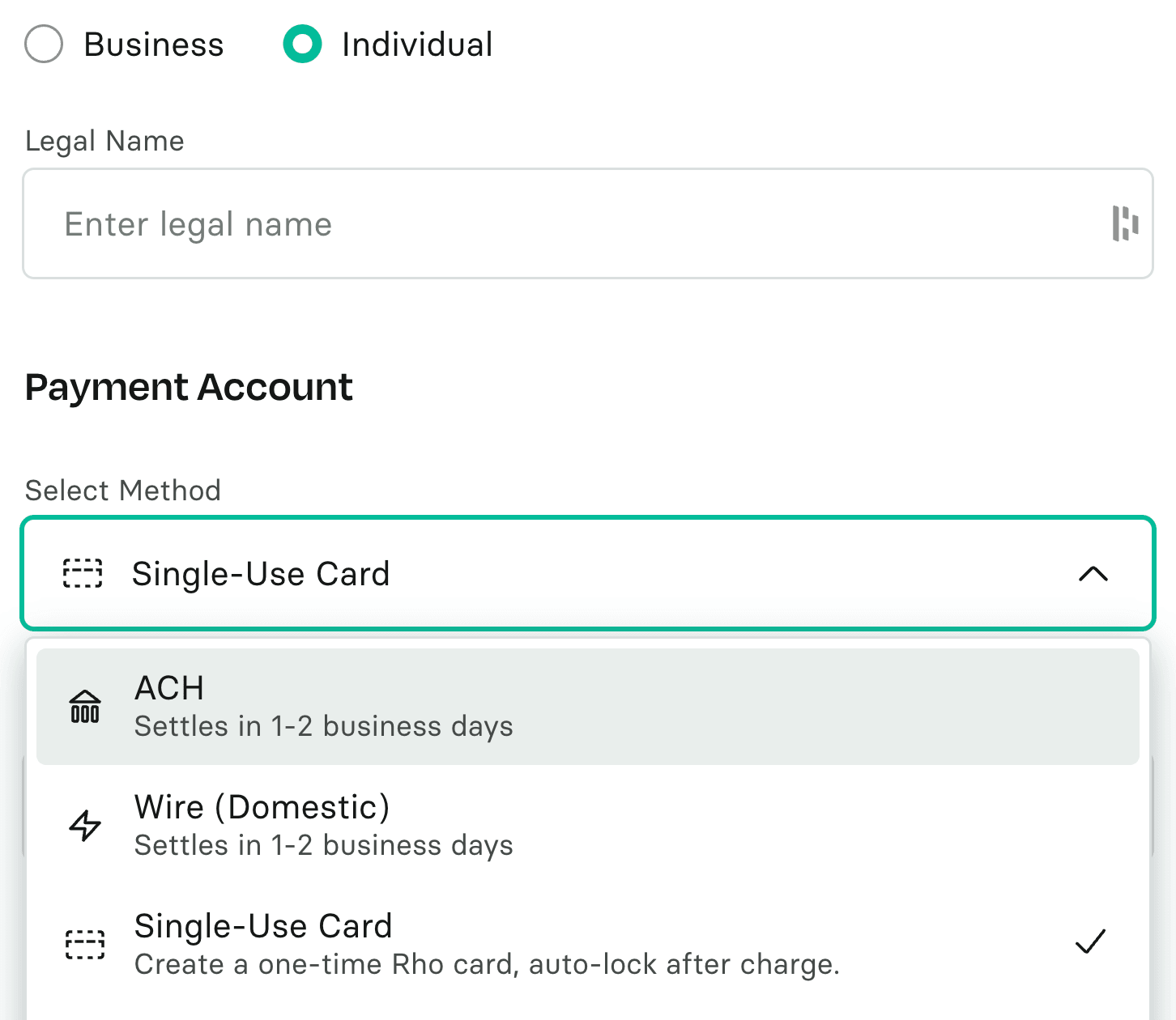 Once selected, a single-use vendor card will be automatically created and linked to that vendor.
Note: When creating a card through the Cards flow, you can choose between different card limit types. However, when creating a card through the Vendor creation flow, you are limited to a single-use vendor card only.
Bulk Create Vendor Cards via CSV
Need to issue multiple Vendor Cards at once? You can do so quickly by uploading a CSV file.
When you upload your CSV:
Rho will automatically create the corresponding Vendor Cards.
If a listed vendor does not already exist, Rho will automatically create the vendor as part of the process.
To get started, navigate to the Cards Tab, select Create New Card → Bulk Create Cards to upload your CSV file.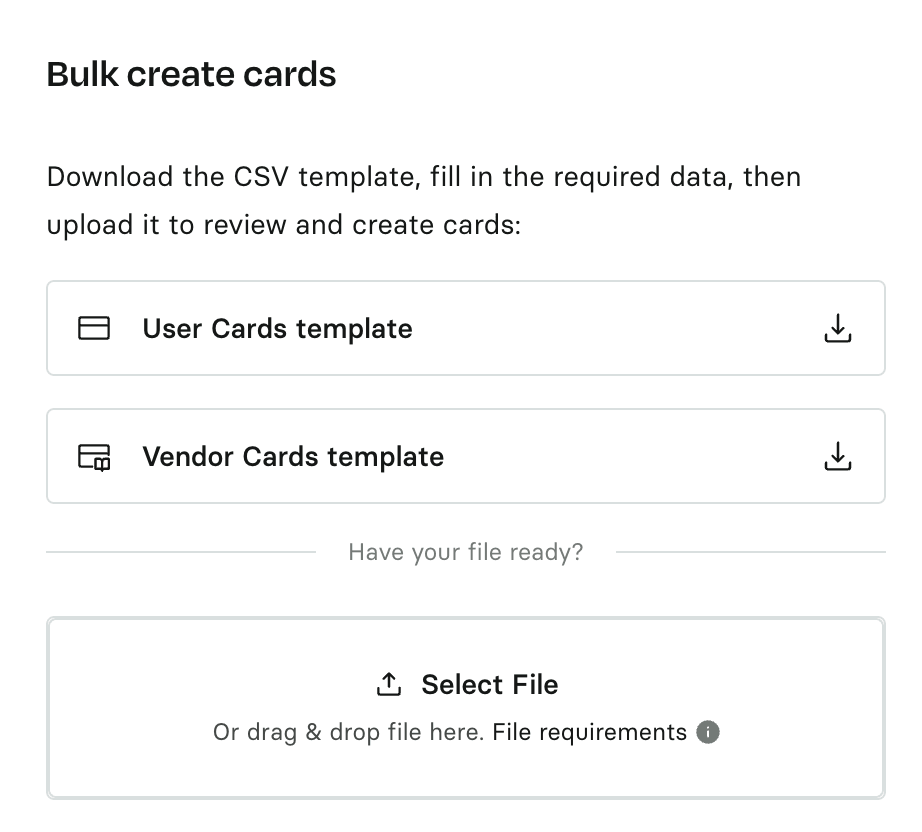
Note: Vendor cards are currently a web-only feature, so they won’t appear in the mobile app. At present, the mobile app will display only cards of the users on the account, and new cards can only be created for those same users.
Completing Setup
On the confirmation page, you have a few options:
Return to your Cards dashboard or View the Card
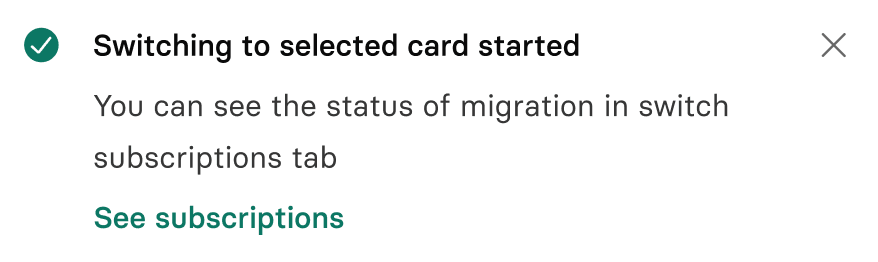
Switch subscription
Share card details via email (defaults to the cardholder, but you can change to the desired email address)
Upon selecting the “Switch subscription” option, Rho will automatically match it to a subscription carrying the same name as the Vendor card.
Managing Vendor Cards
All your Vendor Cards appear under the Vendor Cards tab within the main Cards dashboard. From here, you can:
View card status and transaction history
Adjust card settings
Manage card sharing and controls
Deleting Users or Vendors
If the user who created a Vendor Card is removed, you will be prompted to delete the card. Similarly, if a Vendor profile is deleted, all linked Vendor Cards will be canceled.