How to Collect W-9s with Rho

Rho's Vendor management solution now allows you to collect & store Vendors' W-9 forms on the Rho Vendor profile.

How to collect Vendors' W-9 forms

You first need to have an active vendor profile. Then select the Vendor's profile > navigate to Tax Files > Select New W-9 Form
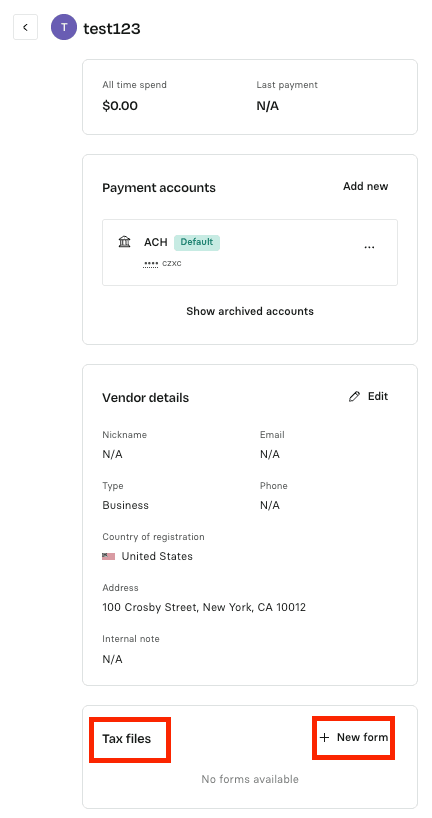
Screenshot of a web interface showing a "Vendor Tax Files" section with options to add a new W-9 form and a sidebar menu on the left.

If you already have a W-9 form on file for this vendor and want to attach it to their profile, select the Upload & Verify option. If you don't have the W-9 on file, select Send Form to Vendor. For more information, see the article section How to Collect a W-9 from a Vendor.

Screenshot of a webpage titled "New W-9 Tax Form Request" with options to send a form to a vendor or upload and verify a W-9 document.


After selecting Upload & Verify, upload the W-9 form file to the Select File section. Note that the file must be a PDF, and the maximum file size is 15 MB. Read and select the attestation to upload the W-9 form.

Once the W-9 form has been uploaded, please verify all fields parsed from it, read, and attest.

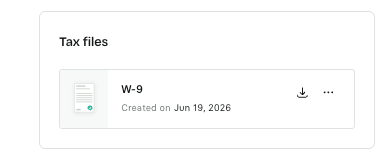
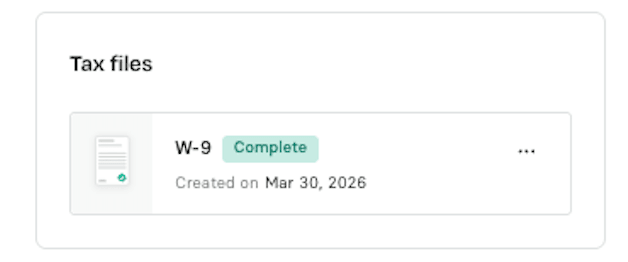
The vendor profile will be updated with a status that the W-9 form is on file.

How to collect a W-9 Form from a Vendor

After selecting Send form to Vendor, you will be prompted to confirm or enter their email address, read, attest & confirm before sending the request

Screenshot of a webpage titled "New W-9 Tax Form Request" with fields for vendor email entry and a checkbox for terms agreement.

The vendor profile will show a status that the W-9 form is pending from the Vendor. Once received, the status will change to On file

Vendor details page showing "ABC Corporation" with type "Business," payment method "ACH," and W-9 form status "Pending from Vendor."

Screenshot of a webpage showing a "Starship" tab with "Vendor Tax Files" selected. A W-9 form is listed as "Sent & Pending" for Nov 28, 2023.

The vendor will receive the following email. The portal will be live for 10 days, during which time the Vendor can upload their W-9 form, review it, attest to the information's accuracy, and complete the submission.
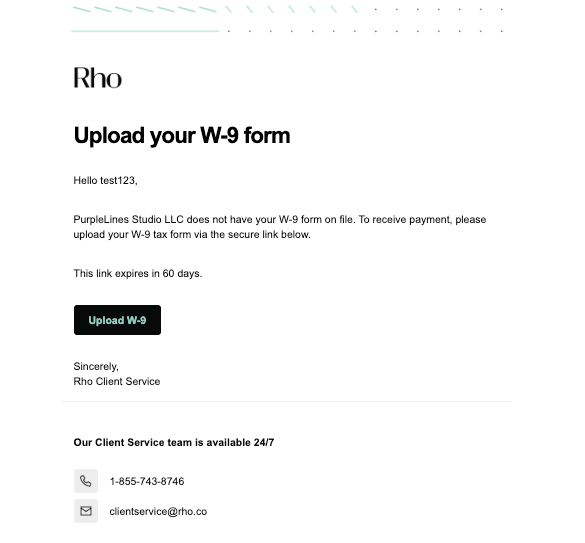
Requests that are not completed will expire & can be resent by the Rho user.

How to export information

All W-9 data is available via CSV export for use with the 1099 filing provider of your choice.

Popular help center articles

Most read this week.

Accounting

How to set up Rho's QuickBooks Integration

The following instructions describe how to set up a direct integration between your Rho Account and your existing QuickBooks Online account. If you're interested in connecting Rho transactions via the QuickBooks Bank Feed, see instructions here . Note: this integration is only compatible with QuickBooks Online. For QuickBooks Desktop, you can download a CSV of transactions from your Rho account via these steps and upload them to QB Desktop). Once you are signed into the Rho platform, click Integrations in the navigation bar. Click the QuickBooks icon. Follow the login instructions to connect to your QuickBooks account. When finished, click Accounting in the navigation bar. Select the transactions you want to sync. Click the Sync button. When you connect Quick Books to Rho, a new account is added to your CHART OF ACCOUNTS tab named RHO [Checking Acct#] , where [Checking Acct#] is the 10-digit account number associated with the linked Rho account. This is your primary account and is required for automatic account reconciliation. You can rename this account, but integration between your Rho account and Quickbooks will not work if the account is deleted. What information can I view in the Accounting Tab? Once you have connected QuickBooks to Rho, use the Accounting Tab in the Rho platform to manage mapping rules, view transactions, and make necessary changes. The Accounting Tab includes two subsections Dashboard and Mapping Rules. Learn more about what you can view in the Dashboard here and about what you see in the Mapping Rules here. Important Integration Notes Syncing with your QuickBooks account is a manual process. Each time you want to reconcile your Rho Account in QuickBooks, you must click the Sync button. However, you can set up automatic recurring syncs by going to the settings tab within your accounting workflow and setting a recurring sync.

General Rho Information

How Do I Contact Support?

Reach out to our dedicated Rho specialists anytime over the phone at 1 (855) 7-GETRHO, through email at clientservice@rho.co, or start a live chat by logging into your Rho account (web or app), clicking the Help button in the lower left, and selecting 24/7 live support.

Cards

How to Add Your Rho Card to your Digital Wallet

Your virtual & physical Rho cards can now be added to your Apple or Google Wallet for a quick, contactless, and secure way to pay. Note: Currently, we don't support adding Rho cards to WeChat. Set up is simple - follow the steps below to get started: Apple Wallet Go to your Wallet app and click the + button in the right-hand corner. Select the Card Type “Credit”. Hold your Rho physical card's chip near your device or place it directly on the screen. For a virtual card, choose the “Enter Card Details Manually” option to add your card. Verify your card details are correct and enter your 3-digit CVV security code. You should notice the "Card Added" confirmation after a few moments. For your added security, you may be asked to verify your Rho Card account via two-factor authentication by “Text Message”, “Email”, or "Authenticator App", if you have set it up. A six-digit code will be sent to your email address, phone number on file, or the Authenticator App, enter your code in the field provided. Your Rho Card is now active in your Apple Wallet and ready to use at contactless point-of-sale terminals that support Apple Pay. For more information, see Apple’s support document . How to use your Rho Card in Apple Pay at a contactless point-of-sale terminal Select your Rho Card via the Apple Wallet app. Double-click the right-hand button on the side of your iPhone when a near contactless point-of-sale terminal. Verify your identity using Face ID or your Passcode. You will now be prompted to hold your phone near the contactless reader. Hold near the reader until the purchase has been completed. Google Wallet Your virtual & physical Rho cards can now be added to your Google Wallet on your Android device for a quick, contactless, and secure way to pay. Set up is simple - follow the steps below to get started: Open your Google Pay (GPay) app on your Android device and click the image of a card in the right-hand corner. This will open a screen that shows you all the cards you have linked to your wallet. Select “Add a Card” at the bottom of the screen. Select the Payment Method “Credit or debit card.” Take a picture of your Rho physical card or the virtual card in your Rho dashboard. Your phone will recognize your card details and then you must enter your 3-digit CVV security code. Alternatively, you may enter your card details manually. Make sure your address, ZIP code, and phone number match your settings in your Rho account. The address should be your organization’s billing address. Press Save. Review Rho’s Terms & Conditions and click “Accept & continue.” For your added security, you may be asked to verify your Rho Card account via two-factor authentication by “Text Message” or “Email.” After you receive your six-digit verification code by text or email, enter it and click Submit. Your Rho Card is now active in your Wallet and ready to use at contactless point-of-sale terminals that support Google Pay. For more information visit the Google Pay Help Center

Mobile App

How to Upload a Receipt in the Mobile App

You can add receipts to all Rho Card transactions within the app ( in addition to desktop, email, and SMS uploads ). To add a receipt, open the Rho app and tap on the transaction requiring a receipt. In the Attachments section, click "Upload Receipt" and choose one of the following options: Select an image from your camera roll Take a photo of your receipt using your camera Select and upload a file Note: Be sure to include any applicable tip amount on your receipt. In the transaction details window, you can also add departments, labels, and notes to your transaction.