
Auto-transfer rules automatically move funds between your Rho Checking and Treasury accounts, so you can keep your operating account funded without manual transfers.
Rule types
Maintain balance rules
Move funds when your balance crosses a threshold you set:
Minimum – transfer funds in when the balance falls below your target
Maximum – sweep funds out when the balance exceeds your target
$0 – sweep the full available balance out
Recurring transfers
Move a fixed amount between accounts on a schedule you choose – daily, weekly, monthly, or custom dates.
Set up a rule
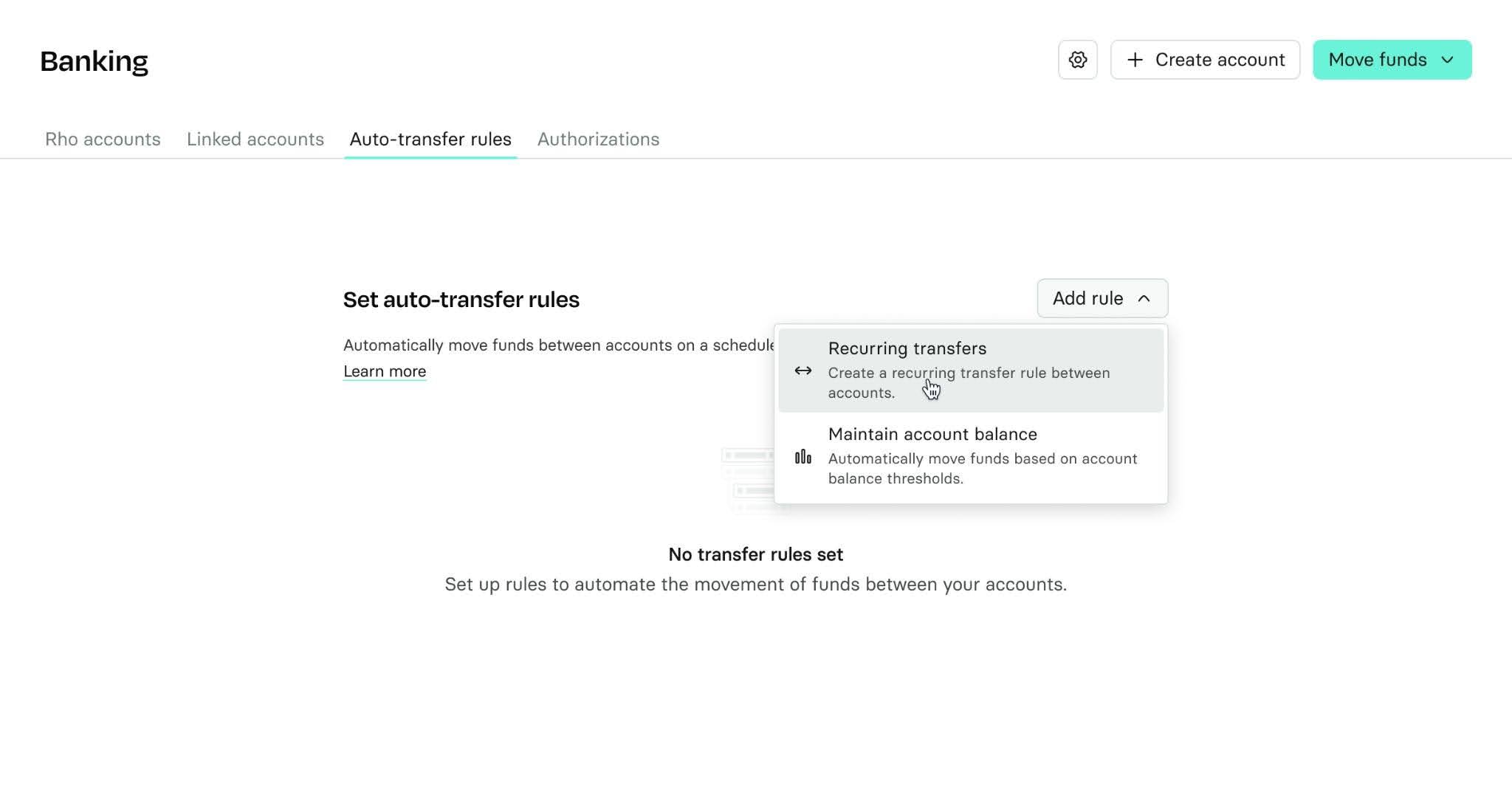
Go to All Accounts > Auto-transfer rules > Add rule
Choose a rule type
Select your source and destination accounts
Set the amount or balance threshold
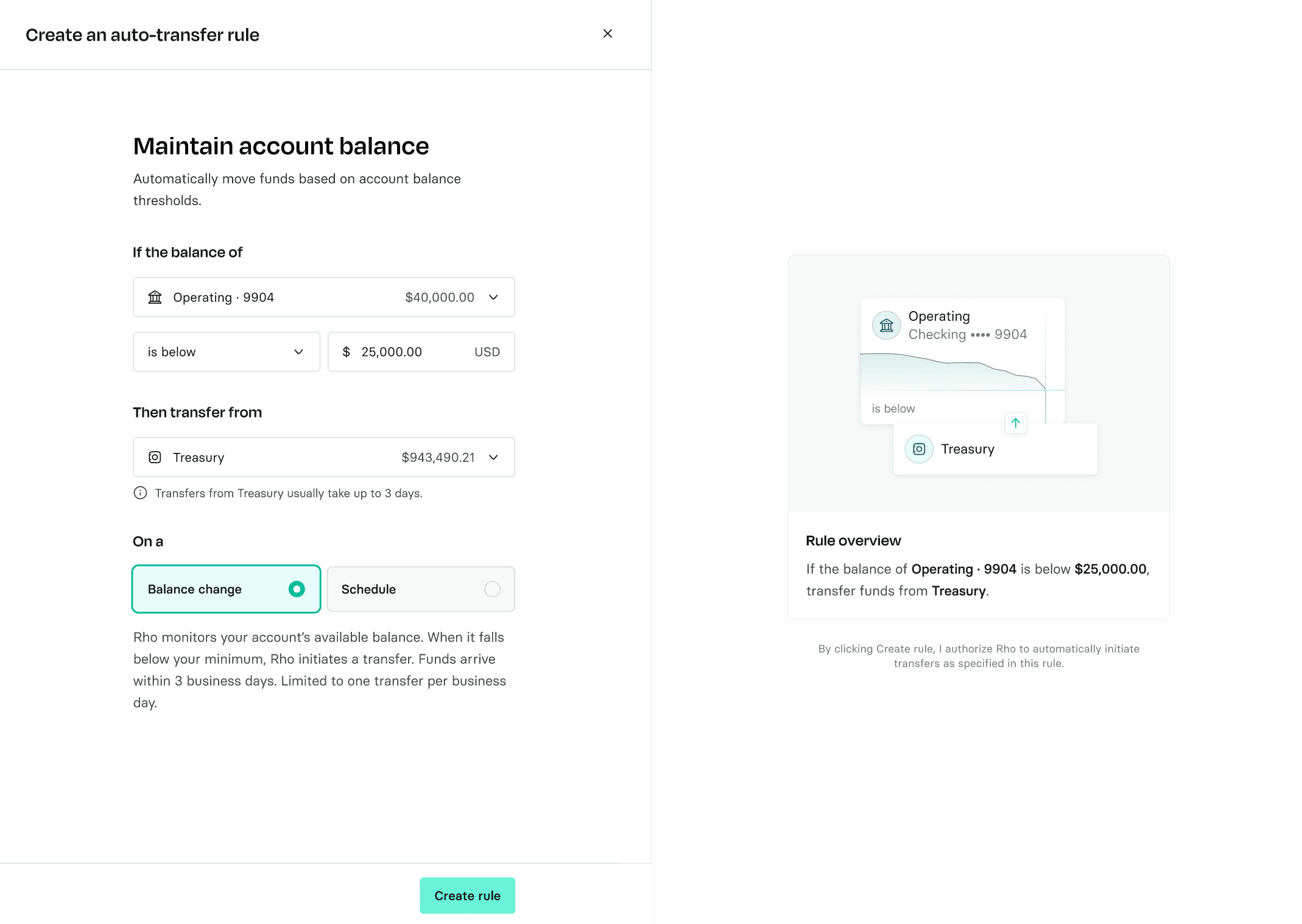
Maintain balance rules – choose Schedule or Balance change.
Recurring transfer rules – pick a transfer cadence.
Click Create rule
Your rule becomes active immediately.
 Source and destination accounts are fixed once a rule is created – to change them, delete the rule and create a new one. You can edit the amount, threshold, cadence, and mode at any time.
Balance monitoring
Balance change is the default option for maintain balance rules. Rho checks your balance after every settled transaction and initiates a transfer once your threshold is crossed.
Available for minimum, maximum, and $0 rules, across Treasury → Checking and Checking ↔ Checking.
What triggers a transfer
Rule | Trigger |
Minimum | Balance falls below your minimum |
Maximum | Balance rises above your maximum |
$0 | Any funds arrive |
How much moves
Rho transfers only what's needed to reach your threshold, minus anything already on its way. Transfers in progress are subtracted before the next amount is calculated, so you're never over-transferred while funds settle.
Limits by direction
Treasury → Checking — one transfer per business day. If your balance crosses the threshold again the same day, or outside market hours, the next transfer initiates the following business day. Funds take up to three business days to settle.
Checking ↔ Checking — no daily limit. Transfers initiate immediately and settle the same day.
What it doesn't change
Balance monitoring changes when a transfer initiates, not how long it takes to arrive. A Treasury → Checking transfer still takes up to three business days.
If your balance drops the day before payroll, the transfer initiates right away but may not arrive in time. For obligations you can't miss, set your minimum high enough to cover them.
Running a rule on a schedule
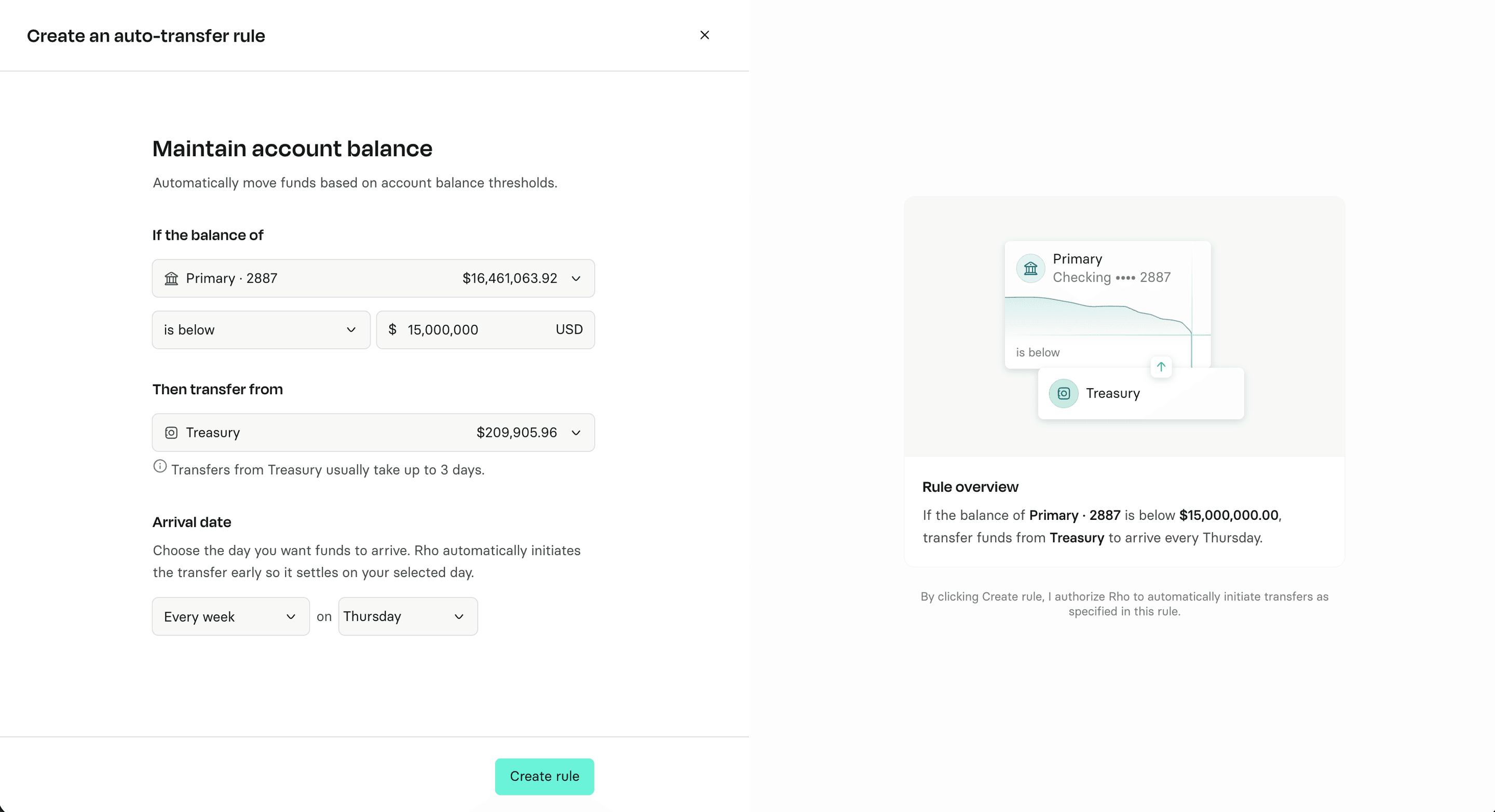
If you'd rather funds arrive on set dates, choose Schedule instead. Recurring transfers always run on a schedule.
Balance change | Schedule | |
When Rho checks | After every settled transaction | Once daily at 8:00 a.m. ET |
When the transfer initiates | That business day | In time to settle on your chosen arrival date |
You choose | Threshold only | Amount and arrival date |
Dates are arrival dates
Any date you pick is the date funds arrive, not the date the transfer initiates. Rho works backward and initiates the transfer early enough to land on time.
Direction | How far ahead Rho initiates |
Checking → Checking | Same day |
Treasury → Checking | Up to three business days, adjusted earlier for weekends and market holidays |
Treasury rules don't run on weekends or market holidays. A run that falls on one moves to the previous business day.
Treasury → Checking cadences
Because Treasury liquidations take up to three business days to settle, scheduled Treasury rules use preset cadences:
Cadence | You choose | Fits |
Weekly | One day (Monday - Friday) | Weekly operations |
Twice monthly | Fixed: 11th & 25th | Semi-monthly payroll |
Monthly | One date per month | Monthly payroll |
These cadences give each transfer enough time to settle before the next one. If you need funds to move more often, use balance monitoring instead.
Rule limits
Up to 5 active rules per organization
One rule per source and destination pair, in one direction only
Each account can be the source of only one rule
Circular rules are blocked – you can't pair an Operating → Payroll minimum rule with a Payroll → Operating maximum rule
Common scenarios
Treasury doesn't have enough funds: The transfer won't complete, and you'll get a notification.
The rule ran but nothing moved: Your balance already met the threshold, so no transfer was needed.
My balance dropped twice in one day: Treasury → Checking transfers once per business day; the second drop is evaluated the next business day. Checking ↔ Checking has no limit.
My balance dropped after hours or over the weekend: Rho evaluates your balance right away. The transfer initiates on the next business day, for the total amount needed. Checking ↔ Checking transfers are unaffected.
A transfer failed or was rejected: Rho removes it from the pending total and re-evaluates immediately, so a new transfer can initiate.
My scheduled date falls on a weekend or market holiday: The transfer runs on the prior business day.
If your rule was migrated
Treasury rules previously on a weekly schedule have moved to balance monitoring.
Before – funds settled every Thursday if your balance had fallen below your minimum.
Now – Rho initiates a transfer whenever your balance falls below your minimum, up to once per business day.
Your minimum balance and accounts are unchanged. You can switch back to a fixed schedule at any time from the ‘Auto-transfer rules’ page.
FAQ
Will balance monitoring get funds there faster? It initiates the transfer sooner, but settlement time is unchanged – up to three business days from Treasury, same-day between Checking accounts.
Can I switch between balance monitoring and a schedule? Yes, at any time. The change takes effect immediately, and any transfer already in progress completes as planned.
Can one Treasury account fund multiple Checking accounts? No, only one Checking account can be funded by Treasury.
Are the preset Treasury cadences only for migrated customers? No. They apply to all Treasury → Checking minimum balance rules in ‘Schedule’ mode. Checking ↔ Checking rules can use custom schedules.
What happened to the top-up amount from the old sweep? Rules now transfer only the amount needed to reach your minimum. To hold more cash in Checking, raise your minimum.
Need help?
Contact Rho Client Service at Client Service At Rho or call 855-743-8746.
Investment management and advisory services provided by RBB Treasury LLC dba Rho Treasury, an SEC-registered investment adviser and subsidiary of Rho. RBB Treasury LLC facilitates investments in securities: investments are not deposits and are not FDIC-insured. Investments are not bank guaranteed, and may lose value. Investment products involve risk, including the possible loss of the principal invested, and past performance does not indicate future results. Registration with the SEC does not imply a certain level of skill or training. Treasury and custodial services provided through Apex Clearing Corp. ("Apex") and Interactive Brokers LLC ("Interactive"), registered broker dealers and members FINRA/SIPC. Interactive rates may vary from Apex rate shown above. For additional information about investment management and advisory services provided by Rho Treasury, please refer to Rho Treasury’s ADV-2A Wrap Fee Brochure.
This material presented is for informational purposes only and should not be construed as legal, tax, accounting or investment advice. Under no circumstances should any of this material be used for or considered as an offer to sell or a solicitation of any offer to buy an interest in any securities. Any analysis or discussion of financial planning matters, investments, sectors or the market generally are based on current information, including from public sources, that we consider reliable, but we do not represent that any research or the information provided is accurate or complete, and it should not be relied on as such. Our views and opinions are current at the time of publication and are subject to change. You should consult with your attorney or relevant professional advisor for advice particular to your personal or business situation.
Any third-party links are provided for informational purposes only. The third-party sites and content are not endorsed or controlled by Rho.
Rho Treasury is not insured by the FDIC. Rho Treasury are not deposits or other obligations of Webster Bank, a division of Santander Bank, N.A., Lead Bank, or American Deposit Management Co.’s partner banks, and are not guaranteed by Webster Bank a division of Santander Bank, Lead Bank, or American Deposit Management Co.’s partner banks. Rho Treasury products are subject to investment risks, including possible loss of the principal invested.