
Recurring transfers can be used to pay bills and make payments.
Unfortunately, you cannot edit a recurring transfer. If you wish to make changes, you will need to cancel the current one and create an entirely new recurring transfer.
Recurring transfers are displayed in the section of the Accounts Tab:
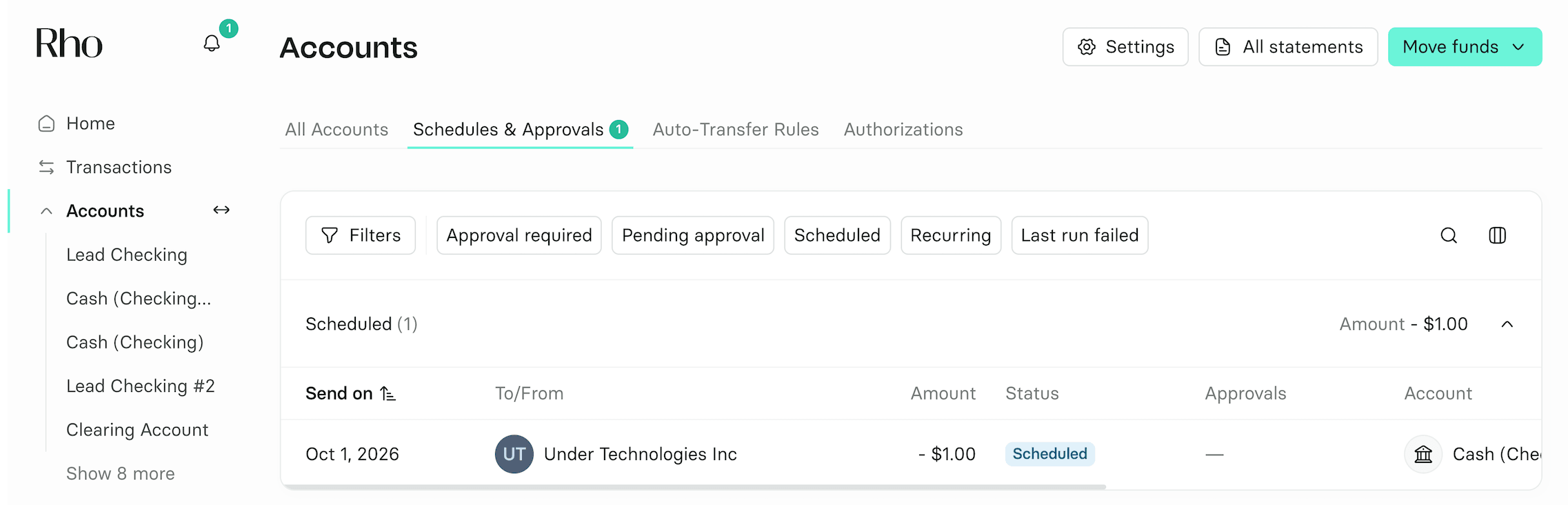
The Schedules & Approvals tab displays all upcoming Rho transfers in a single table.
Select the Recurring filter to see a list of all such transfers. Under the recurring transfer date, you can see its cadence; however, to see the end date, you would need to click on the transaction.
You can also sort and filter scheduled transfers by payment frequency to quickly find recurring or one-time transfers.
From your Rho Accounts tab, click on the Schedules & Approvals tab.
(Note: this option will not appear if you have already selected a specific bank account under the Accounts section. If you have selected a specific account, simply re-click the Accounts Tab to be redirected to the main page).
Once on the Schedules & Approvals tab, you should be able to locate the next upcoming payment or the recurring transfer, or simply locate the transfer using the Filters. Once you’ve done so, click on the three dots on the right side of the Schedules & Approvals line item or go into the transaction and click Cancel.
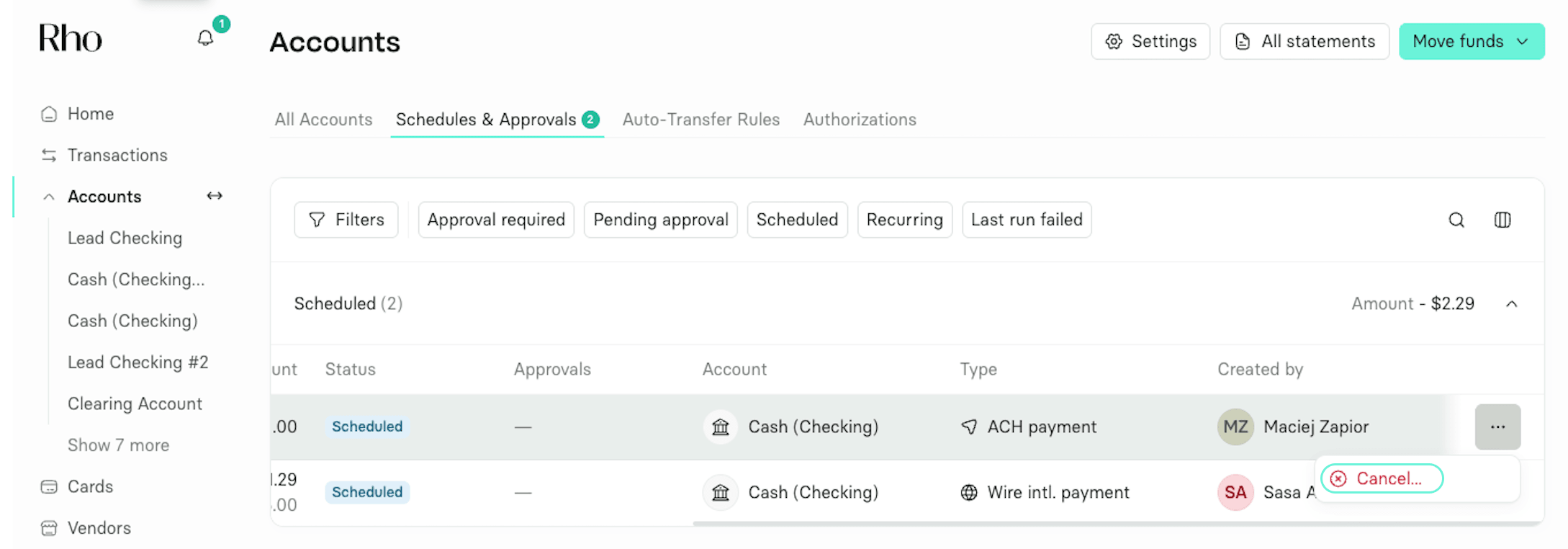
 You can then create a brand new one in your Move Funds option with your preferred changes.