
What is Rho Close?
Rho Close suggests accounting attributes to code your transactions. It learns how your business has coded transactions and delivers suggestions upon request. Rho Close takes the first pass – request suggestions, review what it found, confirm, and sync.
It is available for businesses with a direct accounting integration (QuickBooks, NetSuite, Puzzle, or Sage Intacct).
What Rho Close covers
Rho Close generates accounting suggestions for card and banking transactions.
It does not currently create or modify mapping rules. And it does not deliver suggestions for accounting attributes where an accounting attribute has already been selected.
Enabling Rho Close
Navigate to Accounting → Settings → General. It is toggled on by default.
Getting suggestions
From the Accounting Dashboard, click Suggest coding above your transaction table. Rho Close will generate suggestions for empty accounting attributes across the card and banking transactions in your current view.
Reviewing and acting on suggestions
Suggestions can be accepted or dismissed at multiple levels:
In bulk — accept all suggestions across your transactions view in one click
Per transaction row — accept or dismiss suggestions for a single transaction
Per attribute — accept a specific suggestion individually, or select another attribute from the dropdown to dismiss the suggestions
Bulk control
When suggestions are provided, the bulk accept or dismiss buttons are available at the top of the transaction table.
If you do attempt to sync your transactions in bulk without accepting or dismissing the suggestions, you can decide whether to accept the suggestions or not as part of the sync. 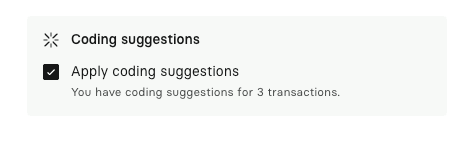
Per transaction control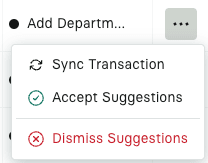
If you do sync an individual transaction without actively accepting or dismissing the suggestions, those suggestions will be applied to the sync.
Per attribute control
For a single attribute, you can accept the suggestion by hovering over the cell and clicking the checkmark. Or you can dismiss and override the suggestion by selecting a different accounting attribute in the dropdown menu.