
Create a card
You can create a new Rho Card with a few simple steps, by navigating to your Cards Tab > All Cards, and clicking the black and green + Create Card button in the top right-hand corner. From the dropdown, select if you'd like to create a card for yourself or someone else, or bulk create cards.

In the pop-up window, select whether you want to create a physical or virtual Rho Card.
Rho will send the physical card by mail. Virtual cards can be used instantly upon creation, both online and via Apple Pay or Google Pay.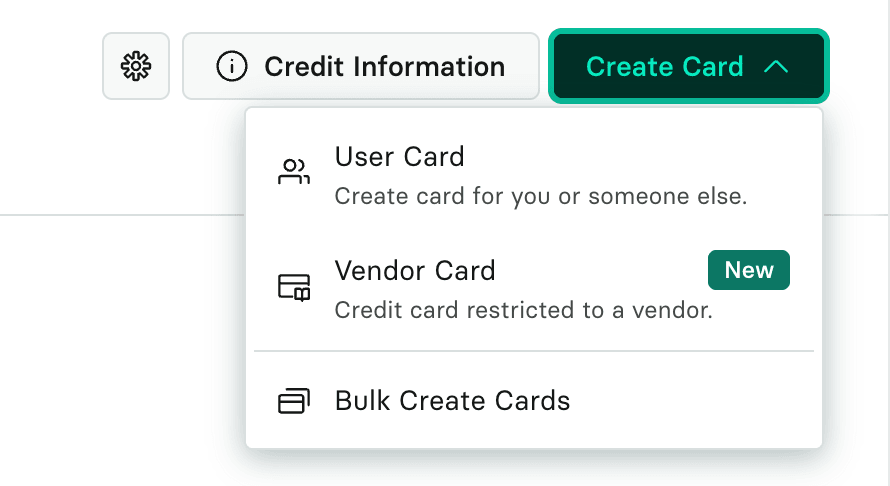
Set up your physical card
If you select Physical Card, you can set up your card in the below screen:

Card Name: Personalize your card by choosing the name you would like displayed.
Card Limit (optional): Specify the maximum amount of money that can be spent monthly using the Rho Card, if desired. By default, the amount is in United States Dollars.
Assign Rho attributes (optional): If desired, you can assign attribute values for specific cards, so transactions from these cards are automatically mapped to these specific values without further manual mapping required.
Merchant Controls (optional): If desired, restrict Rho Card transactions to only select merchants or the categories selected from the drop-down list. For example, you can select Airlines, Air Carriers and Airports, Flying Fields, if you want the card to only be used for air travel expenses.
International Spend: This feature is enabled by default, which means the card can be used outside the U.S. To disable it, simply toggle it to "Off" and click "Save."
Once you've filled in these details, click Continue and you'll be prompted to enter the Billing and Shipping Address. Once completed, you'll see a confirmation that your physical card has been ordered.
Notes:
We cannot ship physical Rho cards to P.O. Boxes. Physical card shipping addresses must be physical addresses.
Physical cards and virtual cards cannot share numbers, CVV codes, or expiration dates. Each created card is its own unique card, therefore two cards, one virtual, and one physical cannot have the same number or be used as the same card.
If you order a physical Rho Card, you will receive an email when the card has been mailed to your address. Typically Rho Cards arrive via FedEx within 2-3 business days. In case it takes longer, please reach out to our Client Service to request the tracking number.
Rho can ship physical cards internationally. Follow the same card creation flow, and enter an international shipping address.
Activate a Rho card
For security purposes, Rho cards must be activated before use.
Activate using the QR code
Physical cards can only be activated by scanning the unique QR code included with the card mailer.
Locate the QR code included in the card package.
Scan the QR code using your device.
Follow the prompts to confirm and activate the card.
Activate by logging into Rho directly
Cards can also be activated directly in the Rho platform. Simply log in, navigate to Cards, select the card, click Activate card, confirm activation.
Set up your virtual card
If you select virtual card, you can add additional controls. For more information about these card controls, see here.

Once you've filled in these details, click Continue and you'll see a confirmation that your virtual card has been created.