
If you covered a travel expense using your personal card, Rho makes it easy to get reimbursed through a Mileage Reimbursement request.
How to enable mileage reimbursements
Before you start, make sure Mileage Reimbursements are enabled for your business—check out our helpful guide for more details.
Once Mileage Reimbursements have been turned on, you can enter a rate per mile for reimbursement. Rho will pre-populate the current year's Internal Revenue Service (IRS) rate of $0.70/mile, but as a Rho administrator or Account Owner, you can adjust it to match your company policy.
Submit a mileage reimbursement
Navigate to Reimbursements from the left-hand navigation bar. Then, click Request Reimbursement in the top right corner. Next, select the type of reimbursement you need—toggle to Mileage on the right-hand side.
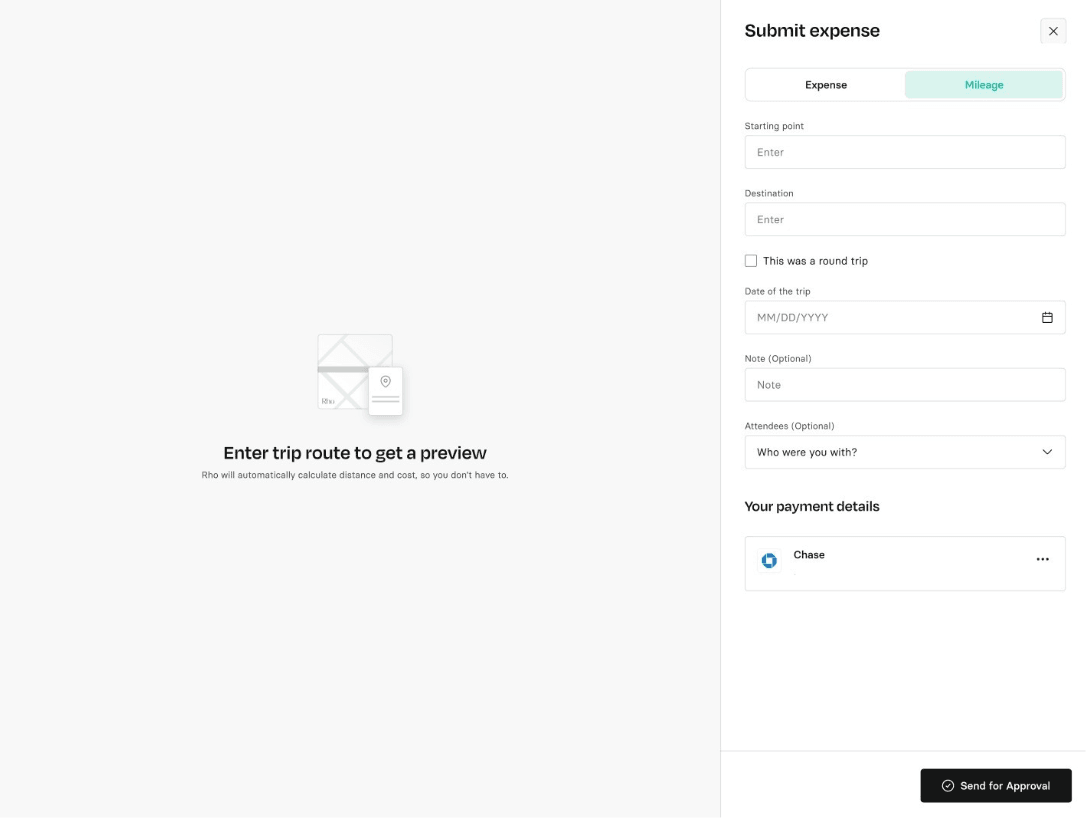 Route: You can easily input your start and end points of your route.. A route preview will be displayed, where an embedded map will automatically calculate mileage and your final reimbursement amount based on the mileage payout rate set by your administrator.
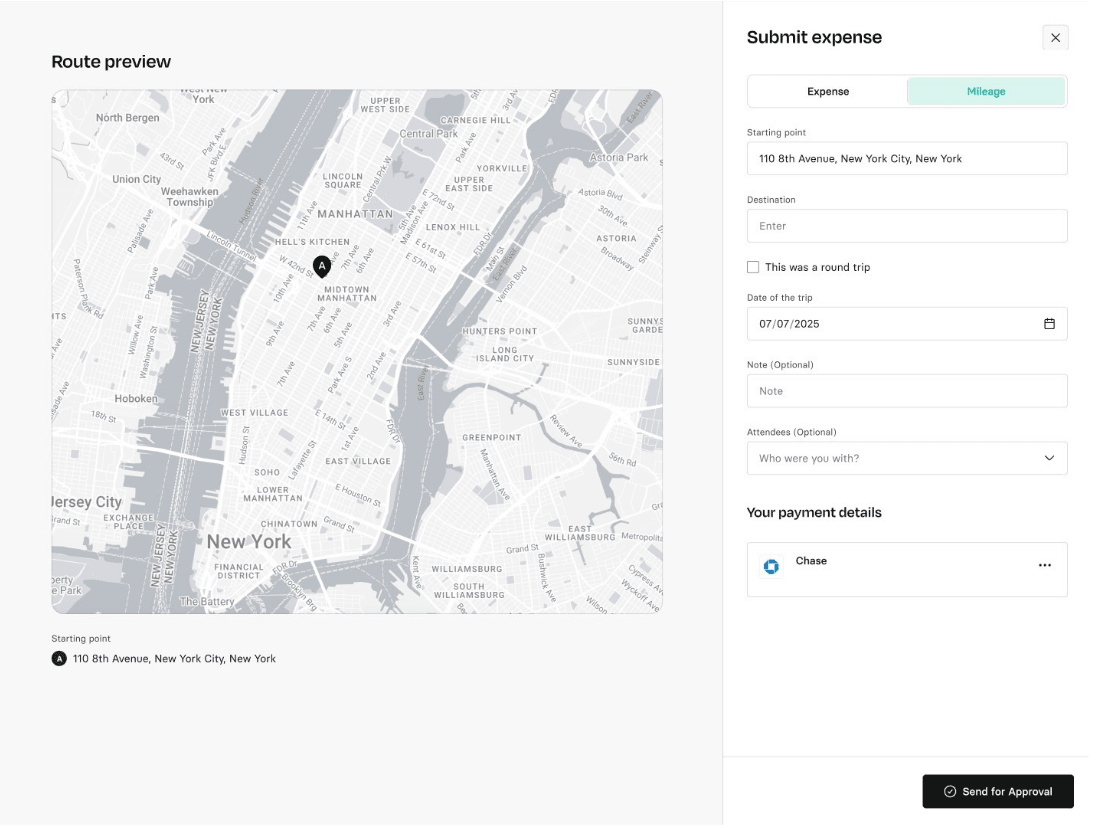 Note: Your mileage reimbursement will be calculated using the rate your business set when the expense occurred.
Under Payment Details, click Add Payment Account. Enter your bank details for where you would like to receive the funds.
Note: This information is securely stored and not visible to other team members. Additionally, Rho processes reimbursements via ACH for domestic bank accounts only.
Click Send for Approval when finished. You'll then see your reimbursement request in your Reimbursements table in Rho.

How the reimbursement will appear
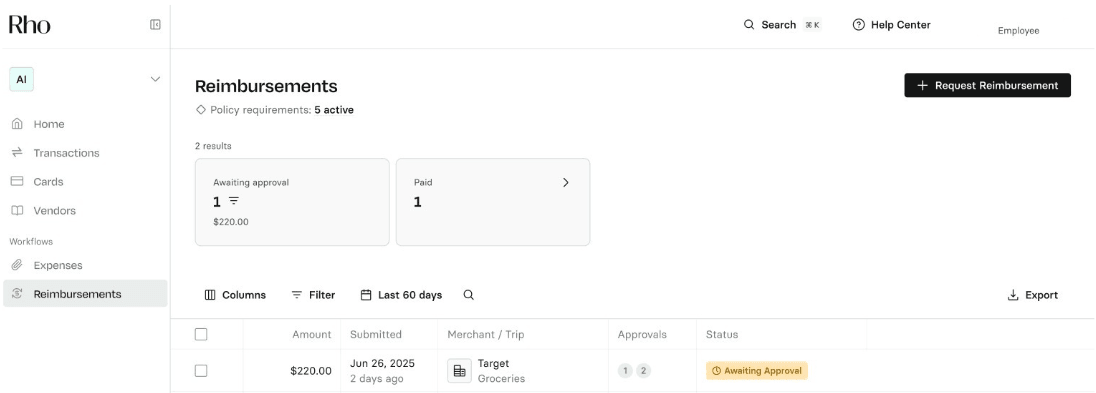
Verify that your request has the status Awaiting Approval, which indicates that it has been successfully submitted for approval. If your business has additional reimbursement requirements, you may be asked to provide additional documentation or information upon submission.
How to Ensure Mileage Reimbursements Sync Successfully to Your ERP via Rho
When using Rho to sync mileage reimbursements to your Enterprise Resource Planning (ERP) system, it is essential to have proper mapping rules set up to ensure transactions sync successfully.
Here's how to set up an Accounts Payable (AP) Chart of Accounts for mileage reimbursements in Rho:
Connect Your Accounting Software to Rho
Before setting up mapping rules, ensure your accounting software is connected to Rho.
Navigate to Mapping Rules
Go to Integrations > Mapping Rules in your Rho account.
Select the Appropriate Entity
Choose the entity or subsidiary for which you want to set up the mapping rule.
Access Settings for Mapping
Click on Settings within the Mapping Rules section.
Set Up the AP Chart of Accounts
Scroll down to Other Accounts and find Rho Accounts Payable.
Select the account from your accounting software that represents your AP account for mileage reimbursements.
Save Your Changes
Ensure all changes are saved automatically or click Save Changes if required.
Note: If mileage reimbursements are categorized differently in your accounting software, you may need to create a specific AP account for these transactions or map them to an existing expense account that handles reimbursements. By following these steps, you can set up an AP Chart of Accounts for mileage reimbursements, allowing for successful synchronization of these transactions from Rho to your ERP system.
Note: You must select an address from the drop-down menu that appears as you enter the address. This ensures Rho can accurately measure the distance between destinations