
If you used your personal card for a company expense, Rho makes it simple to get reimbursed.
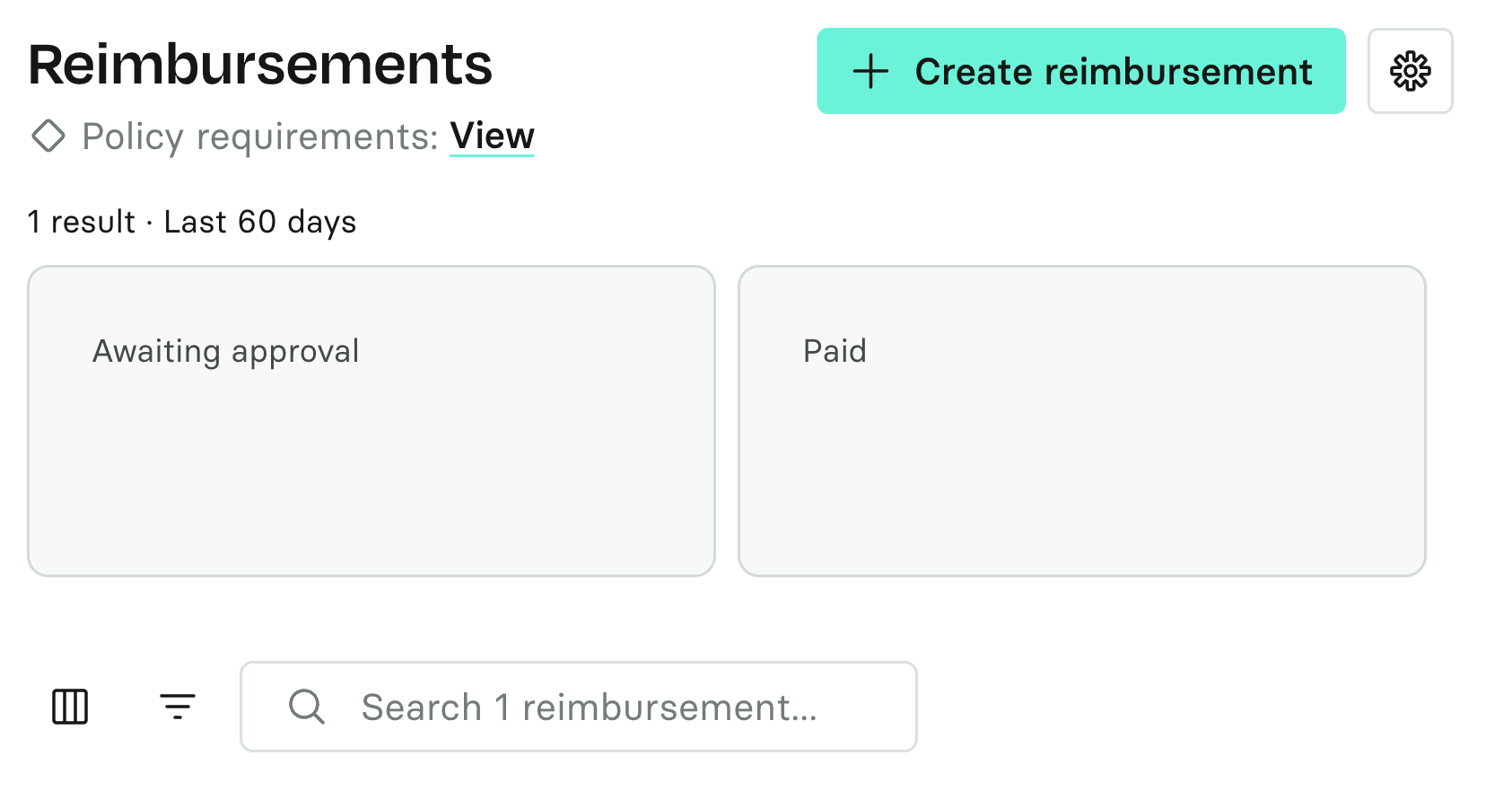
To get started, navigate to Reimbursements from the left-hand navigation bar. Then, click Request Reimbursement in the top right corner.
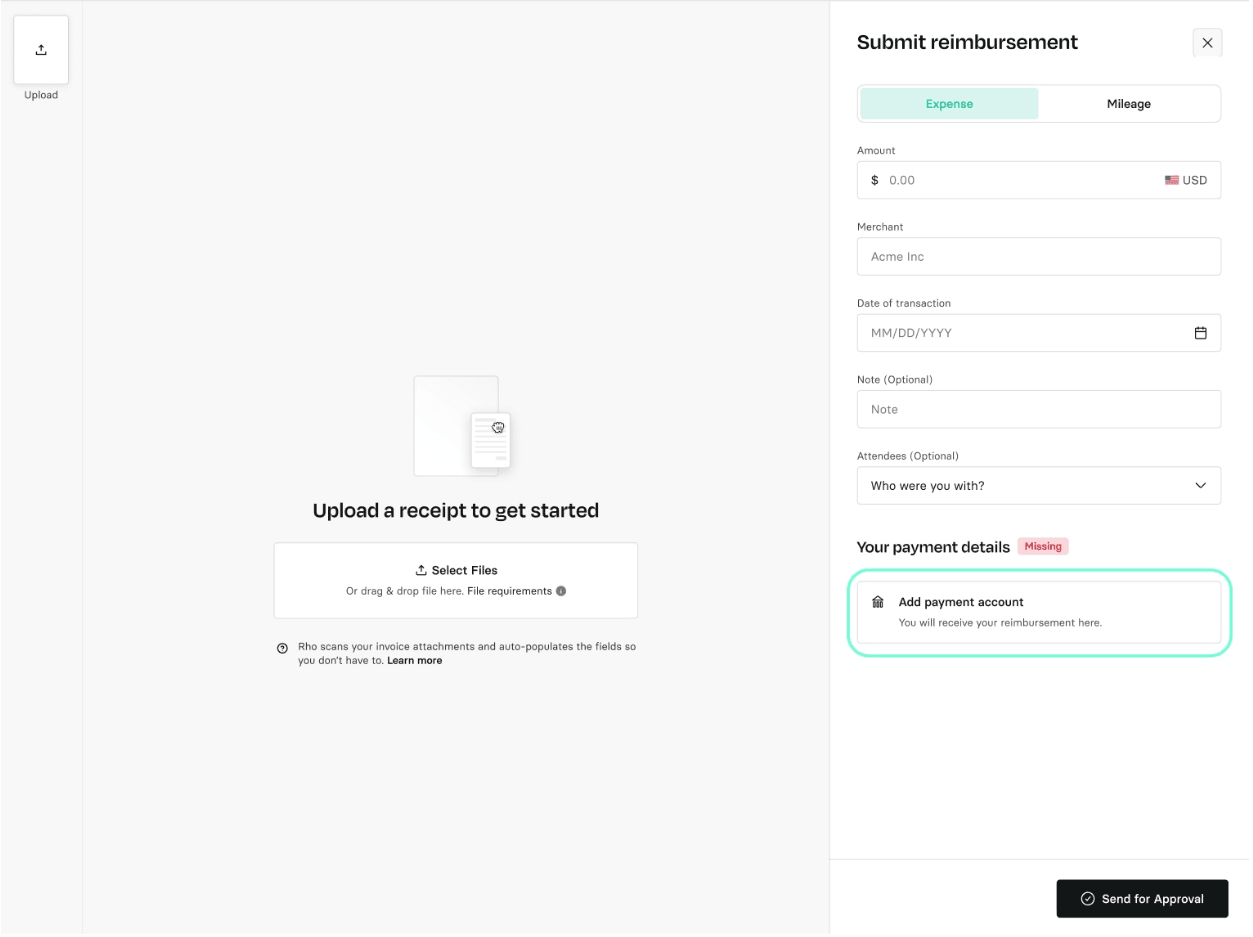
 Next, choose the type of reimbursement you need—toggle between Expense and Mileage on the right-hand side.
Once everything is verified, scroll to Payment Details and click Add Payment Account. Enter your bank details for where you would like to receive the funds.
Note: This information is securely stored and not visible to other team members. Additionally, Rho processes reimbursements via ACH for domestic bank accounts only.
 To submit a Mileage reimbursement, visit our helpful mileage submission guide.
For an Expense reimbursement, you can either upload your receipt—we’ll automatically read the details and fill in the Amount, Merchant, and Transaction Date fields—or enter them manually.
When your request is ready, hit Send for Approval.
You can track the status of your reimbursement in the Reimbursements tab. Two boxes at the top of the screen display the Awaiting Approval and Paid items. You can also click on an individual item from the table to view its details and monitor progress in the Status section.
How to update the bank account for reimbursements
If you wish to update or edit the banking information you initially submitted for your reimbursements in Rho, simply follow these easy steps:
Log In to Your Rho Account
Click on Reimbursements
Click on Personal
From here, click +Create reimbursement button
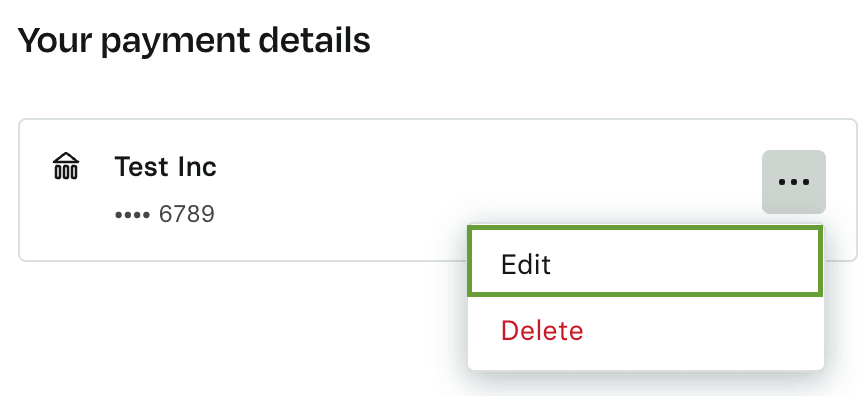
Under "Your payment details" click on the three dots to the right of the payment box
Click Edit and enter new payment details.
 Retry a canceled or failed reimbursement
If a reimbursement payment fails or is canceled, you can retry it directly from Rho — no need to create a new request.
To retry a reimbursement:
Go to Reimbursements from the left-hand menu
Select any reimbursement with a Canceled or Failed status
Click Retry to submit a new payment attempt
You can also retry multiple reimbursements at the same time using bulk selection.
Note: Reimbursements can only be sent to checking accounts. Savings accounts are not supported at this time.