
Rho uses two-factor authentication every time you log in, send a transaction or create a new Rho card! Please make sure to properly configure your 2FA preferences. How to Set Up 2FA:
Verify Your Phone Number: Ensure the phone number associated with your account is accurate. To view the number on your account, Click on your name in the top right corner of your screen and select User Settings from the dropdown menu. If you need to change your phone number, please email the Rho team at clientservice@rho.co.
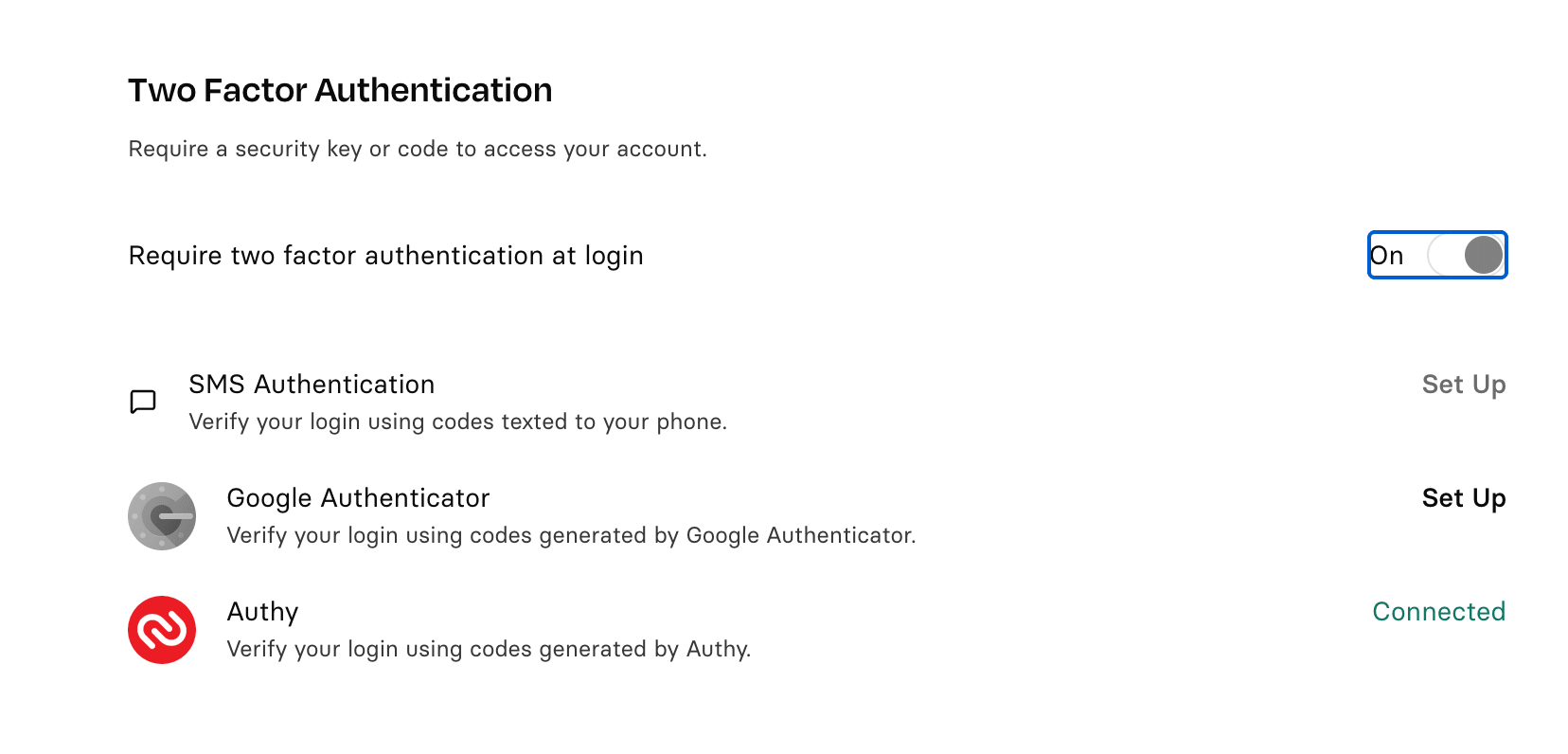
Choose Your 2FA Method: Once your phone number is accurate, you can choose your Two Factor Authentication Settings by scrolling down to that section. You can choose from the following methods:
Google Authenticator - recommended (download from your App Store on your mobile device)
Authy Authentication - recommended (download from your App Store on your mobile device)
SMS - Note: This is the least secure method; using an app is highly encouraged.
Enable 2FA for Sending Transactions & Creating Cards: We encourage you to enable 2FA for Sending Transactions & Creating Cards across all users! You can find detailed instructions for how to enable these functions here. These are easily configured from your Settings Tab, if you navigate to the Security section.
Update your 2FA Method: Click your user icon in the top right corner and select User Settings. From there, scroll down to the Two-Factor Authentication section. Your current 2FA method will show as Connected. To switch to a different 2FA method, you’ll need to first complete verification using your existing method before making any changes.
Admins — require two-factor authentication on every login: You can require users to complete two-factor authentication every time they sign in to Rho — even on trusted devices. This adds an extra layer of security across your organization and overrides your trusted device settings.
To enable this setting:
Go to Settings → Security
Turn on Require two-factor authentication on every login
Once enabled, all users will verify their identity each time they log in.
Update security settings individually: You can now manage security preferences without going through the full two-factor authentication setup flow.
Each setting in the Security panel includes its own toggle, making it faster and easier to update settings individually.
For more information about safety and security at Rho, please read our Terms of Service.