
Attach receipts as you spend to keep your books clean and avoid manual work later. You can submit receipts using any of the methods below.
Ways to submit receipts
You can attach receipts in a few ways — choose what fits your workflow.
Method | How it works | Matching |
Text (SMS) | Send receipt photos to the Rho short code – 555746 | Automatically matched |
Forward receipts to receipts@rho.co | Automatically matched | |
Reply to the transaction alert notification | Reply to a transaction email, SMS, or push notification with your receipt. | Matched to that transaction |
Mobile app | Upload from your phone in the Rho app | You select the transaction |
Desktop app | Upload within the dashboard | You select the transaction |
You can submit multiple receipts at once. Rho automatically matches each receipt to the correct transaction.
Text (SMS)
Send a photo of your receipt to 555746 (Rho short code). Rho matches it to the correct transaction and sends a confirmation text. You can send multiple receipts in one message.
Note: A U.S. or Canada-based mobile number is required. Standard messaging rates apply.
Forward receipts to receipts@rho.co. Rho automatically matches each receipt to the correct transaction.
This works well for online purchases where receipts are emailed.
Reply to a transaction notification
When notifications are enabled, Rho sends a text or email after each approved card transaction.
Reply directly to the notification with a photo or PDF of your receipt to attach it to that transaction.
To enable notifications, navigate to User Settings → Notifications. From there, you can enable notifications by Email, SMS, or both. Push notifications are required and remain enabled by default.
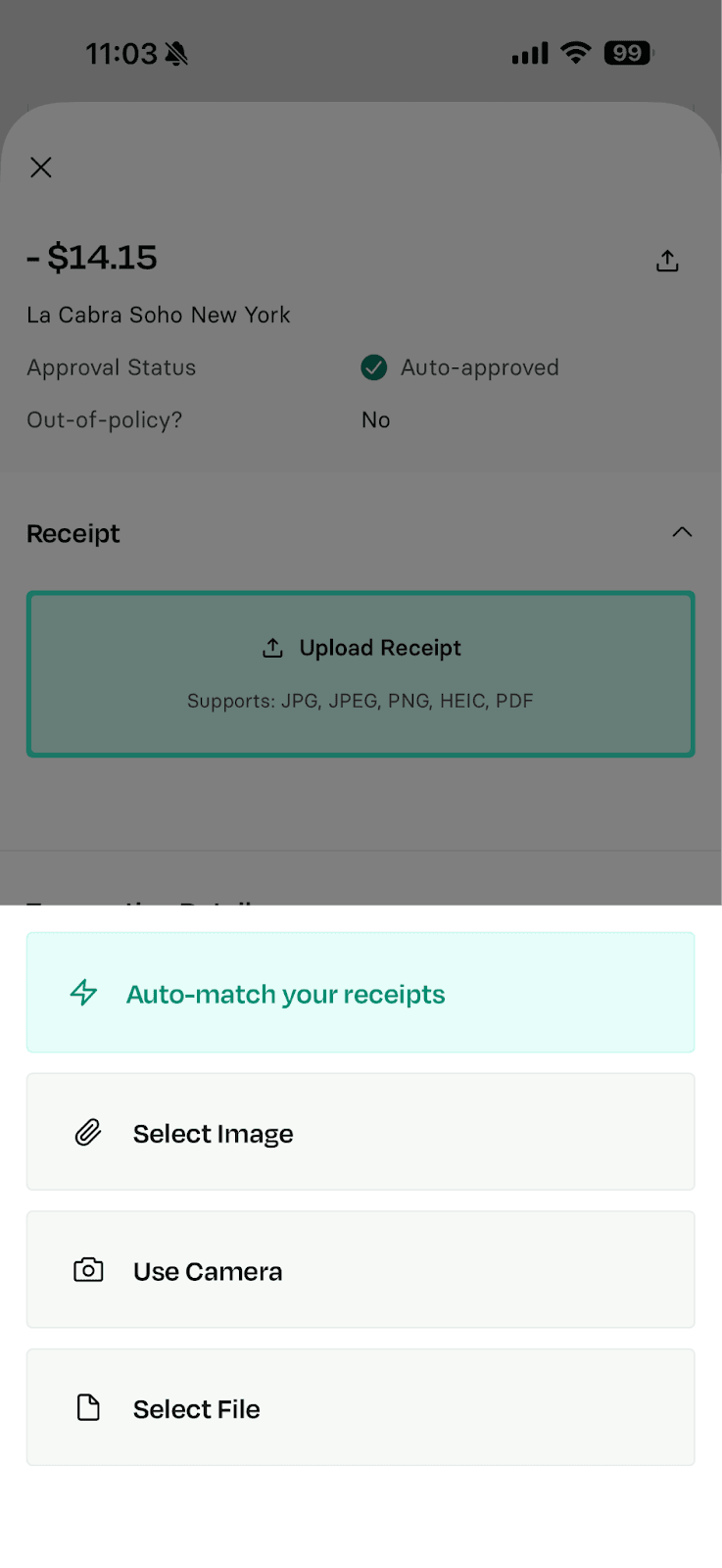
Mobile app
Open the Rho mobile app:
Go to your transactions
Select a transaction to attach a receipt.
Take a photo or upload from your camera roll.
Desktop app
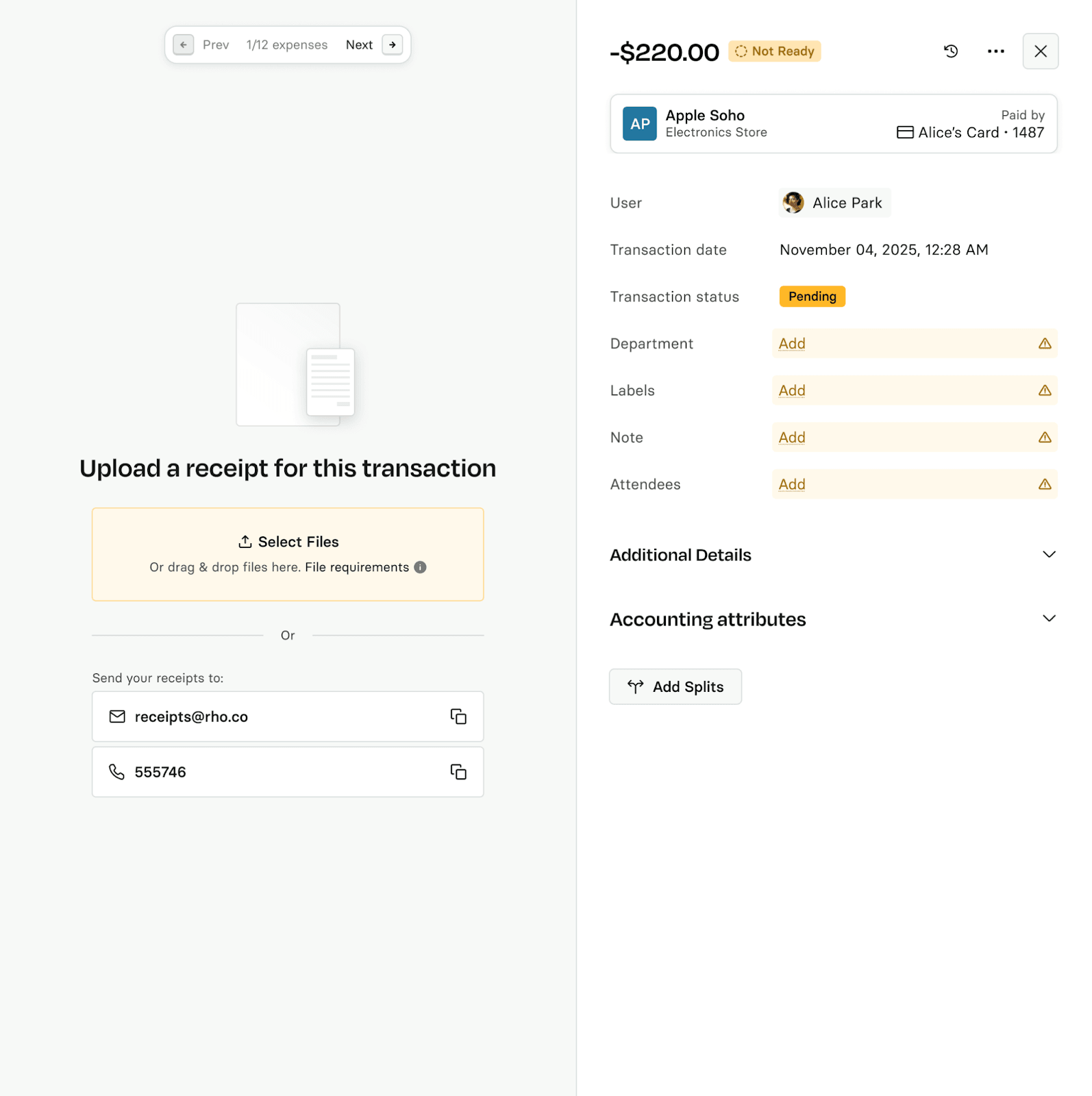
In the Rho dashboard:
Go to the Transactions tab
Select a transaction
Upload a file in the transaction details panel
Supported file types: PDF, JPG, PNG.
View receipts
Transactions with receipts show a paperclip icon on the transactions table. Select a transaction to view the receipt in the transaction details panel.
Troubleshooting
If you reply to a notification for a transaction that already has a receipt, Rho returns an error.
To replace a receipt, open the transaction in the desktop app and upload a new file in the transaction details panel.
Make sure any tip amount is included on the receipt before submitting.