
Users in the Admin, Employee, and Budget Owner default roles—as well as any custom roles with the Manage Team Card Permissions setting enabled—can assign permitted spending categories to an existing Rho card.
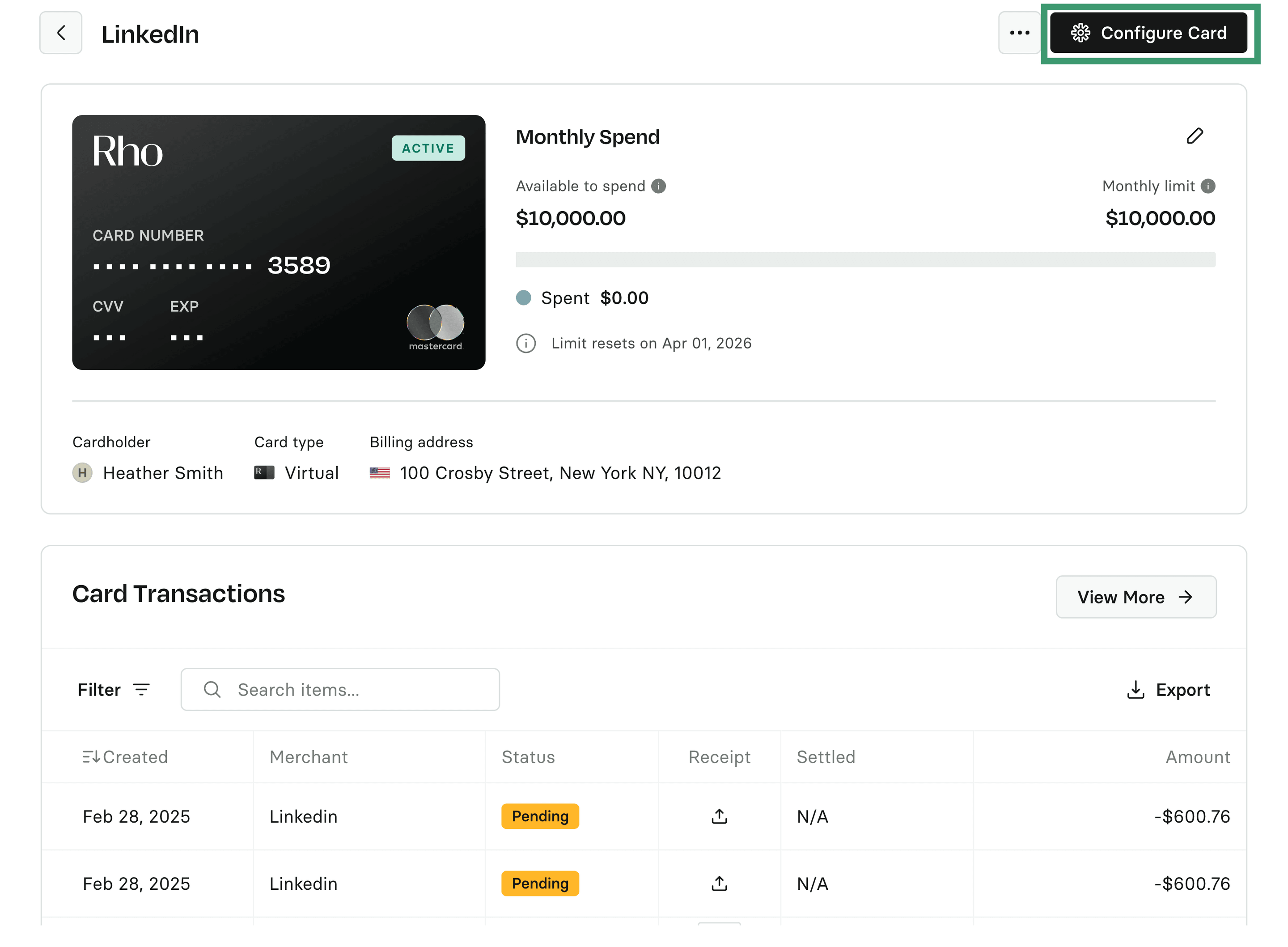
To do this, go to Cards > All Cards and select the desired card. On the card details page, click on the Configure Card button.
Scroll to the Spend Controls section and toggle it on, then select the Categories tab. Then, choose the categories you want to allow from the dropdown list.
For example, you can select Airlines, Air Carriers and Airports, and Flying Fields to restrict the card to air travel expenses only.
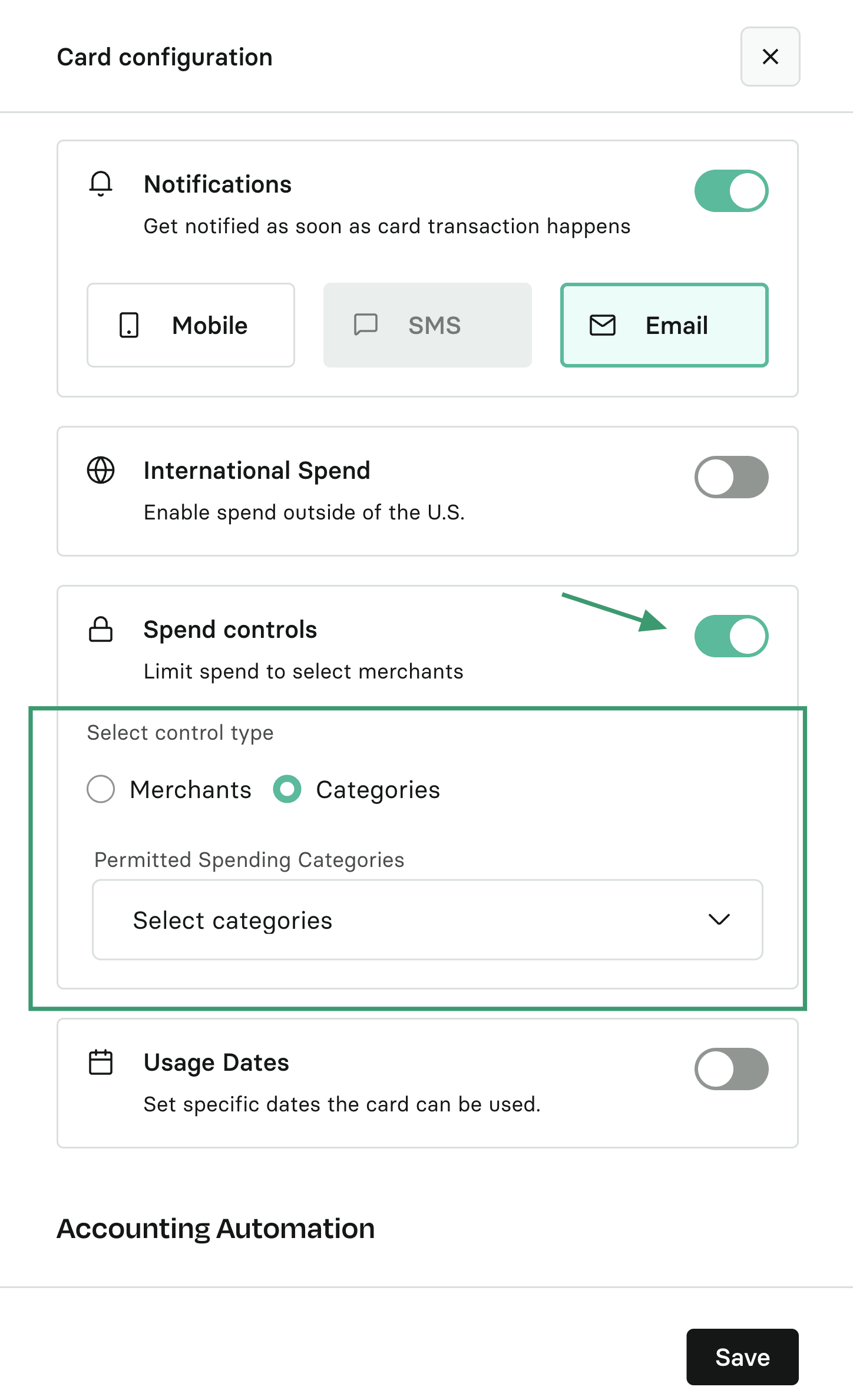
Click Save at the bottom of the form when you have finished editing the settings.