
To update your card settings, navigate to Cards Tab > All Cards > My Cards in the Rho dashboard. Once you locate the card you want to update, click on the card to open more details. Once in the new tab, click the Configure Card button in the upper right corner of the screen, and you will be able to view the card settings.
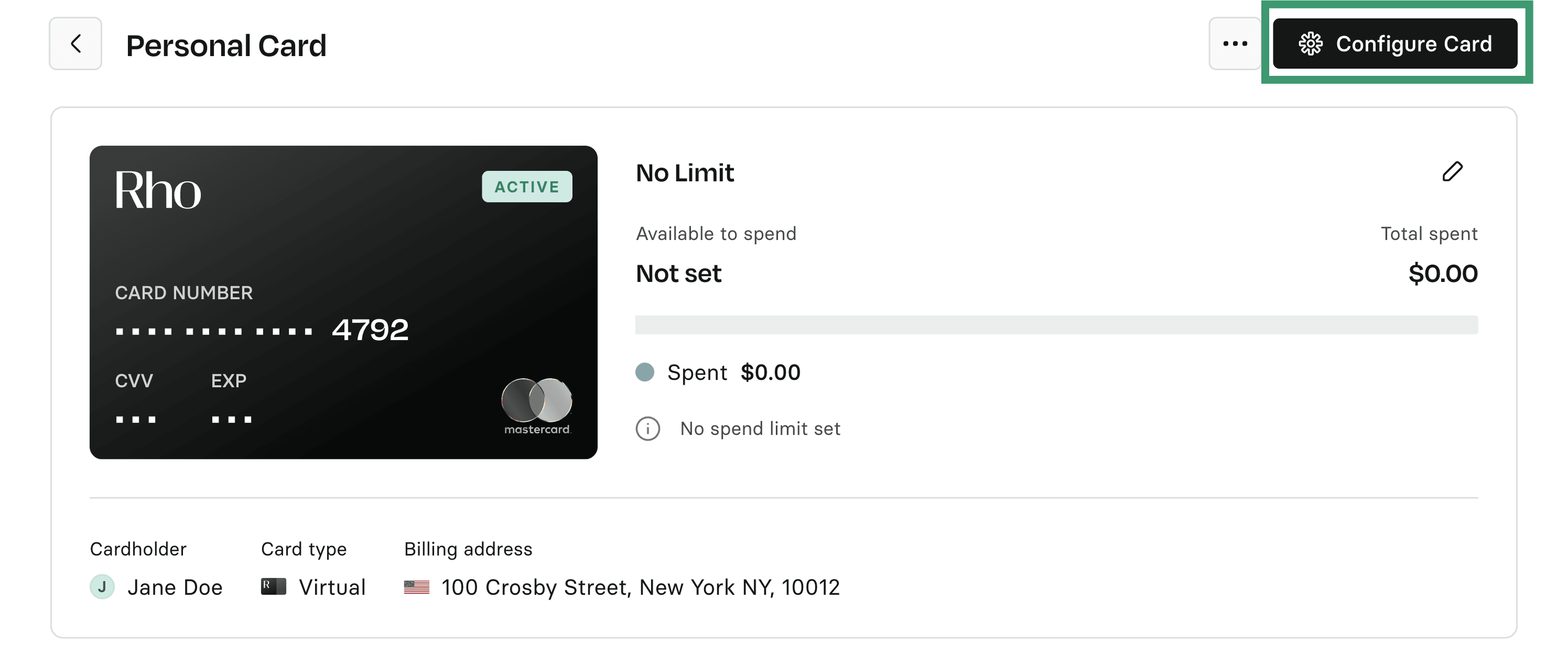
The Card Configuration window allows you to change the settings of your Rho Card, such as:
The card name
The card limit
The permitted spending categories
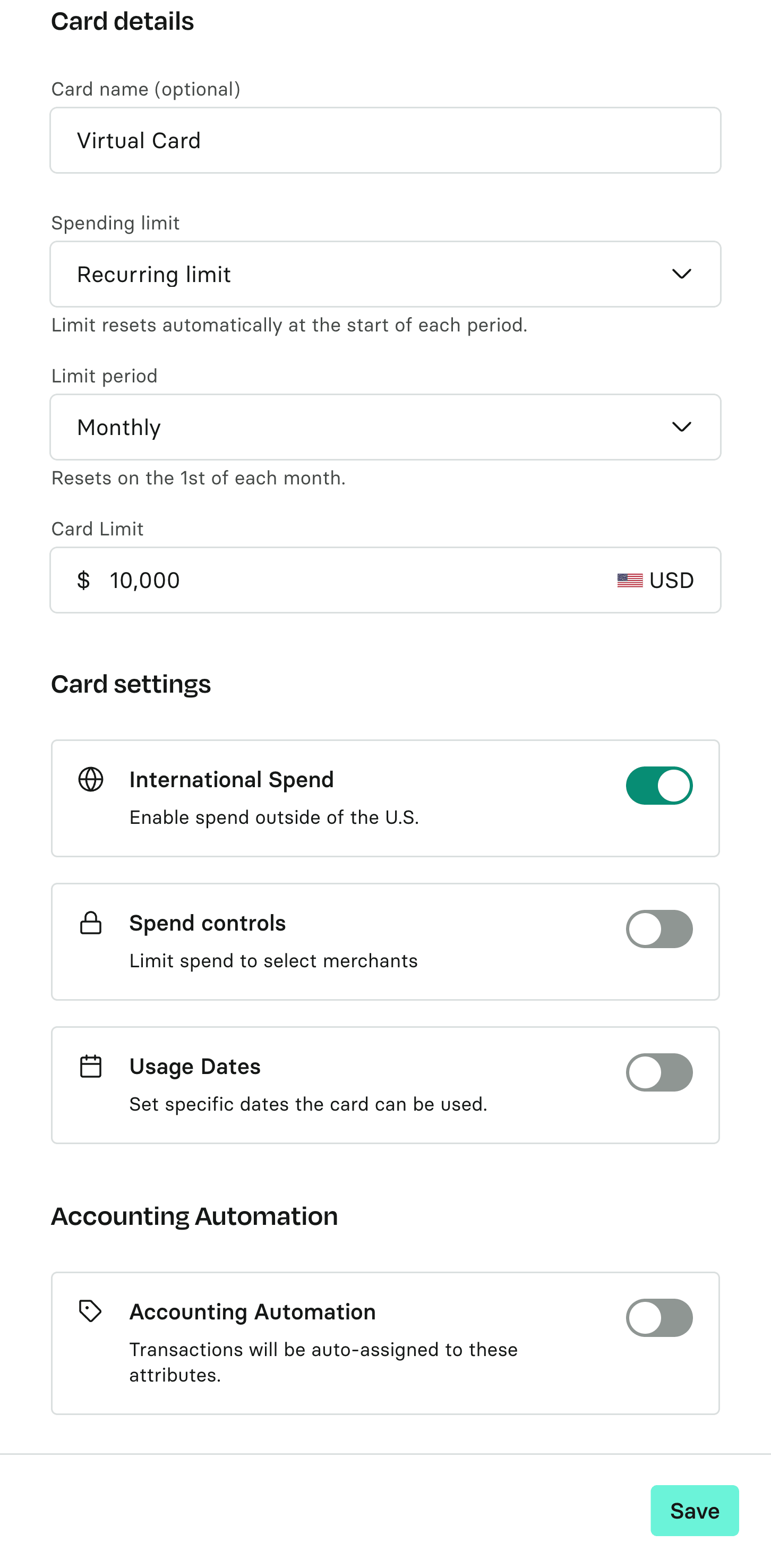 Edit the desired settings (listed below) and click Save Changes when finished
Card Nickname: When the card is initially created, the Card Nickname is automatically populated with the first and last name of the user assigned to the card.
Card Limit (optional): The maximum amount of money, in USD, that can be charged to the card, depending on the Limit Type.
International Spend
Spend Controls
Card Usage Dates
Note: By default, your Rho cards are tied to your primary Rho Checking Account. If you have sub-accounts, the spend is tied to the primary account, and this can’t be changed.