
Note: Monthly user limits are a legacy feature that’s no longer enabled by default. Monthly user limits are no longer part of Rho's standard offering.
You can change the spending limit on existing cards within the Cards tab in the Rho dashboard.
In the All Cards tab, select the card you wish to edit. Click the Configure Card button in the upper right corner to adjust your spending limit.
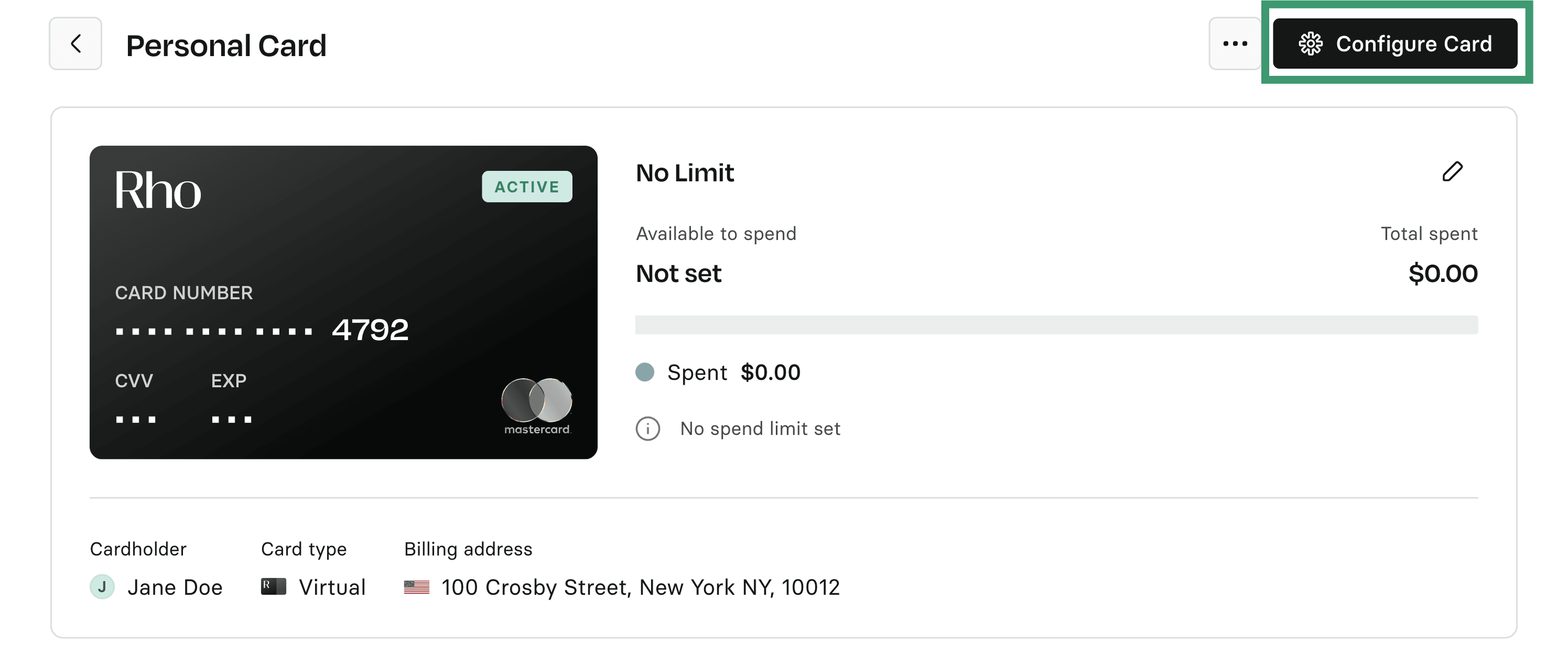
From the Card Configuration window change the Card Limit to the desired value. Click Save Changes when you are finished.
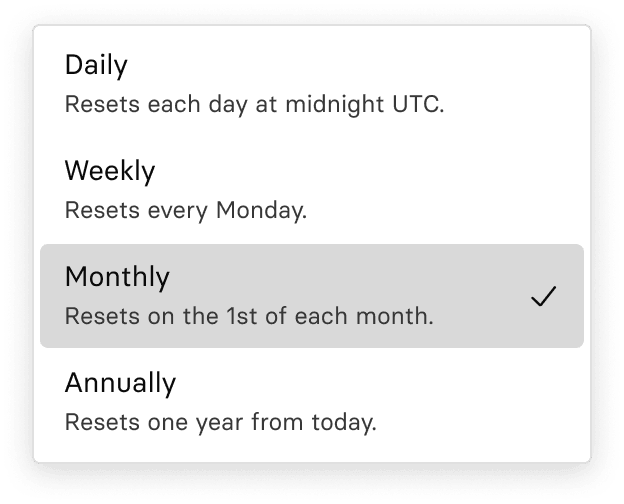
 In addition to the standard monthly limit, below are the rest of the available limit types:
Daily: resets every day, ideal for merchants with consistent daily spend
Weekly: resets every week; useful for weekly billing cycles and budgets
Annual: resets once a year; best for aligning with annual cadences
 You can also control spend across multiple Rho Cards using User Limits. Learn more here.
The Rho Card with Daily Terms
Note: Card spending is based on the available balance in your Rho Checking account. While user and card limits control how much a card can spend, transactions will only be successful if there are sufficient funds available in Checking. Changing a user or card limit does not increase your available balance.
The Rho Card with Monthly Terms
Note: Card spending is based on your overall account credit limit. While you can adjust individual card limits, transactions will only be successful if sufficient credit is available within your total credit limit. Changing a card or user limit does not increase your total available credit.
When you enter "0" as the card limit, it implies that the card has no spending limit. You will see a warning message in the card limit modal during both the card creation and card settings processes, alerting you that setting the limit to "0" effectively removes any spending cap on the card.