
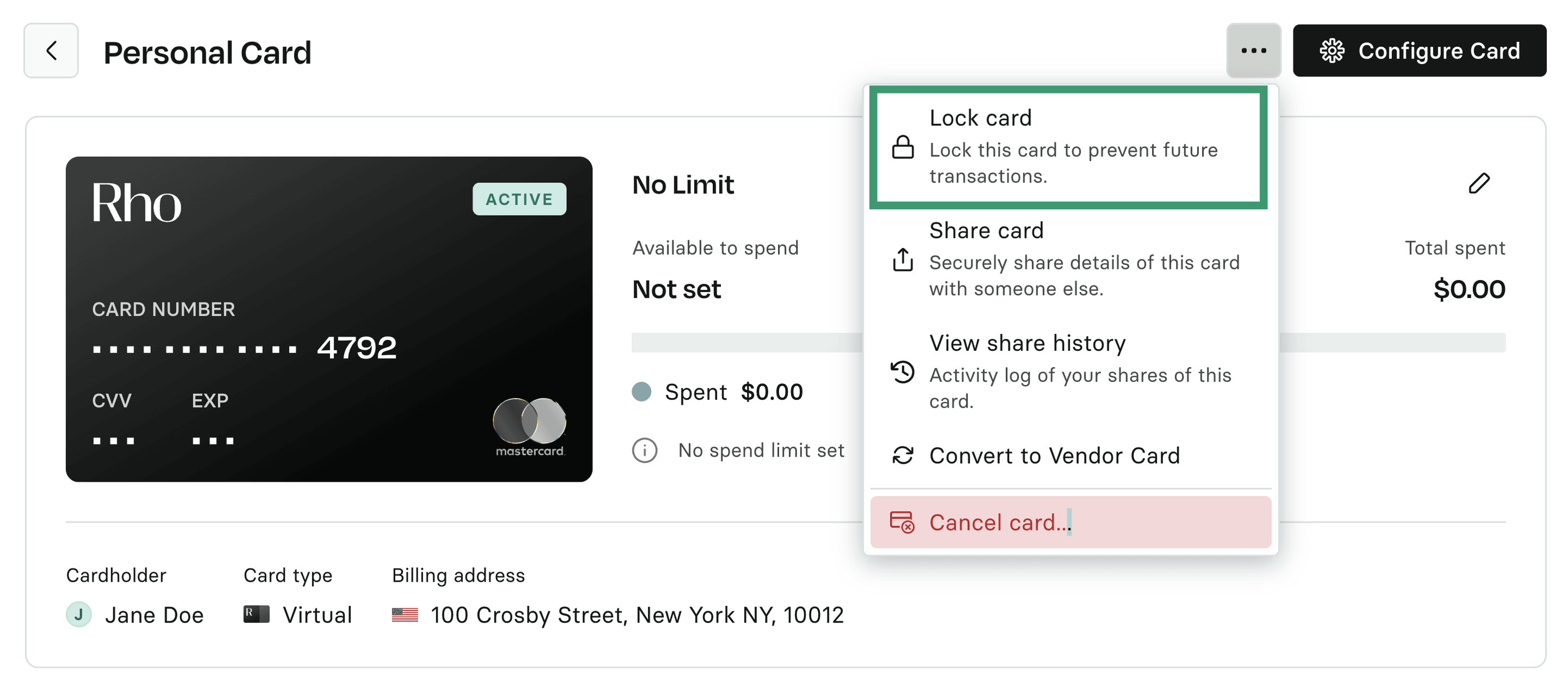
You can lock or unlock your Rho Card (or your employees' cards) from the Cards tab within the Rho dashboard. To lock a card, first navigate to the All Cards sub-tab and select the desired card. In the Card expansion page, click the three dots (⋯), then select Lock Card from the dropdown menu.
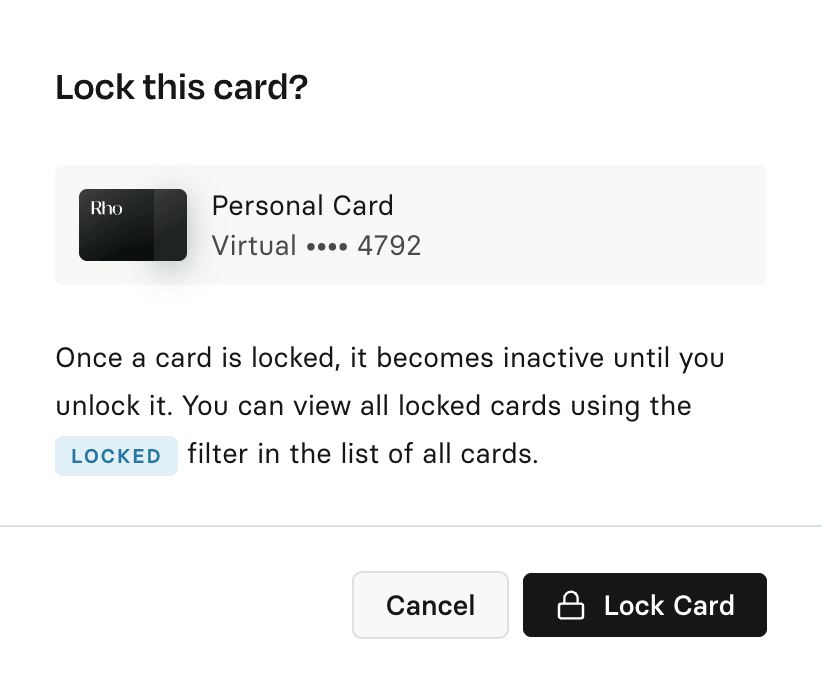
A confirmation window will display asking you to confirm your change. Click the Lock Card button to finish.
Once a card has been locked, it will be inactivated and displayed in the Inactive Cards section of the All Cards page.
Any attempted transactions on a locked card will be automatically declined until the card is returned to its Active state.
To unlock a card, follow the same steps, but click Unlock Card in the Actions menu. On the confirmation window display, Unlock Card, and you'll then be able to use your card.