
We know every Rho customer is unique and has different business needs which impact how their employees interact with the Rho platform. For this reason, our user management feature equips Account Owners and Administrators with full control over how your users interact with the platform and what they can access.
To manage or edit user access, first log in to your Rho Dashboard.
Once logged in to your Rho dashboard, select the Users tab in the left navigation menu.

Under Users, you will see two tabs: Users and Roles. This article is split into two sections accordingly: managing Individual Users and managing Roles.
Managing Individual Users
In the Users tab, admins can create, manage, and view all user profiles of their organization for streamlined administration and updates.
Add a New User
To add a new user, navigate to Users. In the Users tab, click the Add User button in the top right corner of the dashboard.

The drop-down will prompt you to either Add User or Add from CSV.
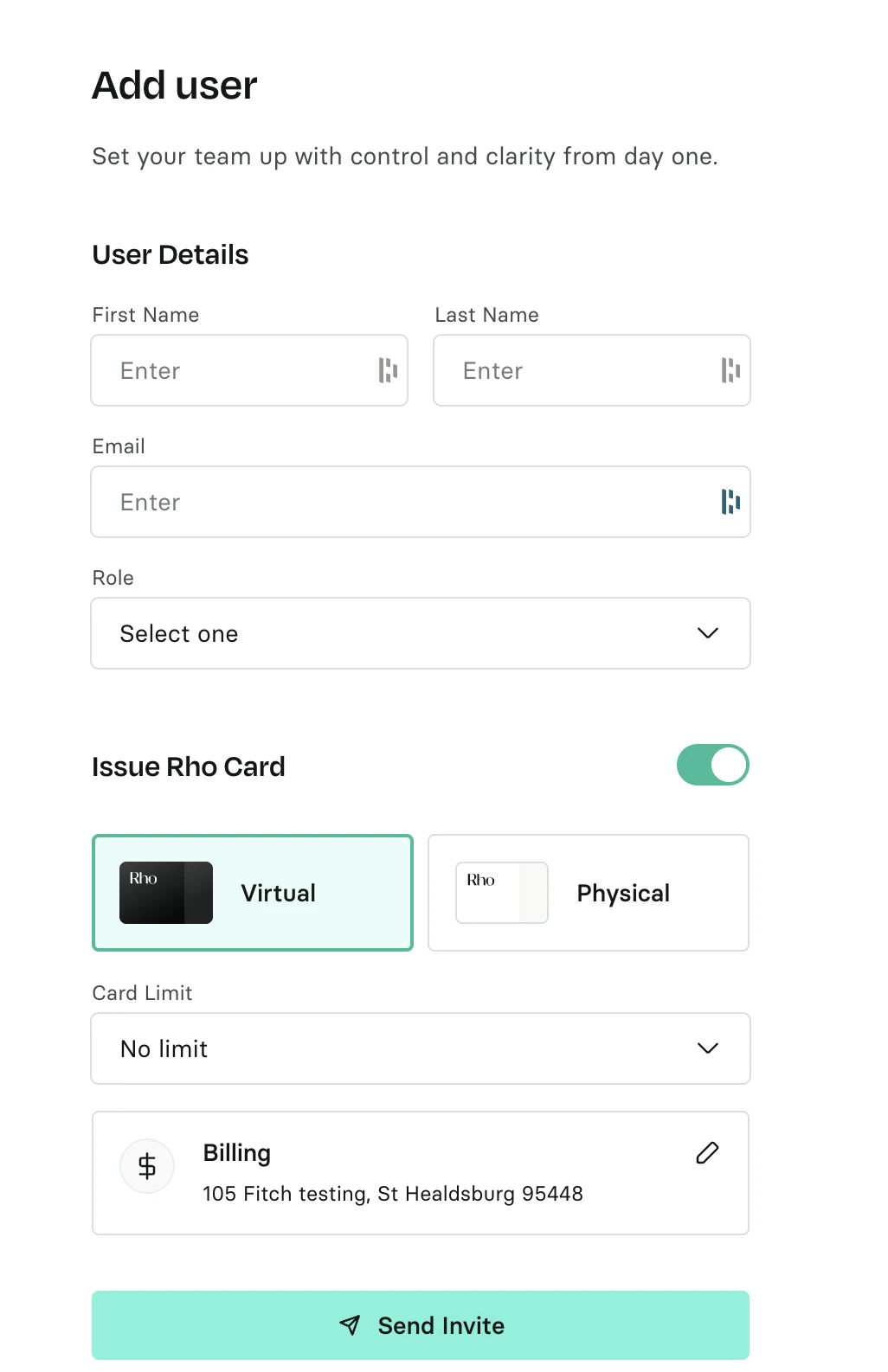
To add a User, fill in the details in the pop-up form and save and submit your changes by clicking Invite User.
To Import Users, upload a CSV file with the information of one or more users. Please refer to our template CSV file to ensure the correct format for importing.
Form Fields:
First Name: Specify the user's first name.
Last Name: Specify the user's last name.
Email Address: Specify the user's email address. When the profile is created, the Rho application sends an email message to the user inviting them to the Rho application.
Phone Number: Specify the user's phone number.
Note: Phone number is not required when adding a new user. However, users must have a phone number on file to activate cards under their name, as well as for the mandatory 2FA.User Roles: Click the drop-down list and select the desired role for the user in the Rho application. For more information about User Roles, see our Roles Tab under Users.
Monthly User Spending Limit: Enter the amount of money the user can spend in a calendar month.
Edit a User Profile
To edit an individual users information, navigate to Users > Users. In this tab, you will see a list of all users. Select the desired user by clicking their name, which opens a new window with their information and details.

Under their name, click the Edit button. In the pop-up form, make your desired changes, then save and submit them by clicking Save.
Delete a User
To delete an individual user, navigate to Users > Users. In this tab, you will see a list of all users. Select the desired user by clicking their name, which opens a new window with their information and details. Under their name, click the Edit button. At the bottom, click the red Delete User button on the form.

This prompts a final pop-up confirming the deletion. Please note deletions are permanent and irreversible.
Managing Roles
Similar to the Users tab, the Roles tab allows you to view and manage all of your user groups in one place. In this tab, you can:
View details for each user role and users who belong to each role. You may also search for and directly add or remove users from groups here.
View and edit default user roles, which Rho has pre-designed to address common client user roles and their likely access level needed.
Create and define new, customizable user roles based on specific control preferences and your organizations needs.
Default User Roles
Rho has six pre-set user roles, which are available to use as defaults. These are Account Owner, Administrator, Department Owner, Employee, Bookkeeper, and Investor. Each user group has a unique package of permissions and pre-set controls to minimize set-up time.
See below for the six default user groups and their descriptions:
User group | Description |
Account Owner | This role should be assigned to the owner of the account at Rho, typically the CEO or CFO of a company. Account Owners have full access to the dashboard as far as creating and using Team Cards, creating wires/ACHs, viewing account balances, creating and viewing Departments, accepting legal agreements, and adding new Team Members. This role, along with the Administrator, will have the default ability to accept any legal agreements on behalf of the client. |
Administrator | The Admin role in Rho is designed for individuals who require comprehensive access and control over the Rho dashboard, often assigned to a member of the company's executive or leadership team, such as the Director of Finance or CFO. Admins have full access to the dashboard, including the ability to create and use Team Cards, initiate wires/ACHs, view account balances, create and view departments, accept legal agreements, and add new team members. This role, alongside the Account Owner, possesses the default ability to accept any legal agreements on behalf of the client. Overall, the Admin role is a high-level access role that allows for managing and overseeing the company's financial operations within Rho. |
Department Owner | This role should be assigned to the manager of a team of employees but not an Administrator. Each Budget owner has the ability to view and manage Departments that they are added to, and any team cards that are also added to that Departments. Here is more information about creating Departments. Department Owners can not create bills. |
Employee | This role should be assigned to any employee who should be given limited permissions. They are unable to view account balances or Vendor history. |
Bookkeeper | This role should be assigned to any employee who should be given limited permissions. They are unable to view account balances or Vendor history. |
Investor | This role should be assigned to investors who need to review account finances directly. This role is predominantly 'view only’, however, investors can create transactions in the banking tab. |
AP & Expense Manager | This role should be assigned to users responsible for managing the company's day-to-day expenses and accounts payable operations, such as an AP Specialist or Finance Operations Manager. These users can view all transactions across the organization, approve or reject spend requests when assigned as an approver, and create and pay bills. This role does not have the ability to configure expense policies or set up approval rules, making it well-suited for operational finance team members who execute on established workflows without needing administrative control. |
External Admin | This role should be assigned to external parties who require full administrative access to the Rho account, such as a fractional CFO or an outsourced finance team. External Admins have super-user level access, including the ability to make payments, issue cards, and configure the account's expense policies, approval workflows, accounting rules, and business settings. They can also invite new users to the platform. This role mirrors the capabilities of the Administrator, but is designed for trusted external collaborators rather than internal members. |
External Accountant | This role should be assigned to a third-party bookkeeper or accounting firm, who need access to financial data for reconciliation and reporting purposes without the ability to take action on the account. External Accountants can view transaction and bill data, add attributes to transactions, configure and sync data to connected direct integrations, or generate bank feed tokens. This role is read-focused with limited action permissions, ensuring external parties can support accounting workflows without accessing sensitive operational controls. |
Edit Permissions of Default User Roles
While the Default User Roles have pre-set permissions, further customizations may be made to the Department Owner, Employee, Bookkeeper, or Investor groups. Note that the Account Owner or Administrator is not editable.
In the Users > Roles tab, from the list on the left hand of the screen, click on the Role that you would like to make changes to. This will open a side window with your selected Role's details. Here, you can select the permissions you want to be enabled and click on the Save button. For an in-depth glossary of permission definitions, please reference our User Permissions Glossary.

Create New User Role
If you don't want to use a pre-configured User Role, you can create a new group in the Roles tab. Navigate to the Users > Roles tab. In the upper right corner, click the Create Role button.
This will open a side window, where you will name your new Role and customize the controls and permissions.
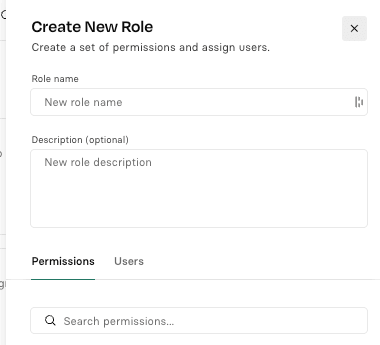
In the Permissions section, all permissions will be set to Off status as default. Checkmark the toggle to the On status to enable your users within this role to use the desired functionality.For an in-depth glossary of permission definitions, please reference our User Permissions Glossary.Finalize the creation of your new Role and submit your changes by clicking the Save button.
Duplicate User Roles
Existing User Roles (with the exception of Account Owner and Administrator) may be duplicated for your convenience. This includes customer Roles you have created, as well as most Default Roles.
First, navigate to the Users > Roles tab. Once in this tab, select the Role that you would like to duplicate from the list of existing Roles on the left hand of the screen. This will open a side window with your selected Role's details.
Click on the three dots at the top left corner, and select Duplicate Group from the drop-down.
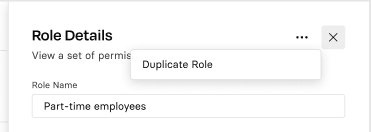
This will pre-populate a new Role with the original Roles permissions checkmarked to the respective On or Off statuses. The last step is to name your new role and add a description.
To finalize the creation of this new role, click the Save button to save and submit your changes.
Delete User Roles
First, navigate to the Users > Roles tab. Once in this tab, select the Role you want to delete from the list of existing Roles. This will open a side window with your selectedRoles details.At the bottom of the side window click on the Delete button.

This will prompt a pop-up asking to confirm the deletion. Click the red Confirm Deletion button to complete the action. Note that once a Group is deleted, it cannot be restored.
