
How to Use Mileage Reimbursements

If you covered a travel expense using your personal card, Rho makes it easy to get reimbursed through a Mileage Reimbursement request. 

How to enable mileage reimbursements

Before you start, make sure Mileage Reimbursements are enabled for your businesscheck out our helpful guide for more details.

Once Mileage Reimbursements have been turned on, you can enter a rate per mile for reimbursement. Rho will pre-populate the current year's Internal Revenue Service (IRS) rate of $0.70/mile, but as a Rho administrator or Account Owner, you can adjust it to match your company policy.

Submit a mileage reimbursement

Navigate to Reimbursements from the left-hand navigation bar. Then, click Request Reimbursement in the top right corner. Next, select the type of reimbursement you need—toggle to Mileage on the right-hand side.
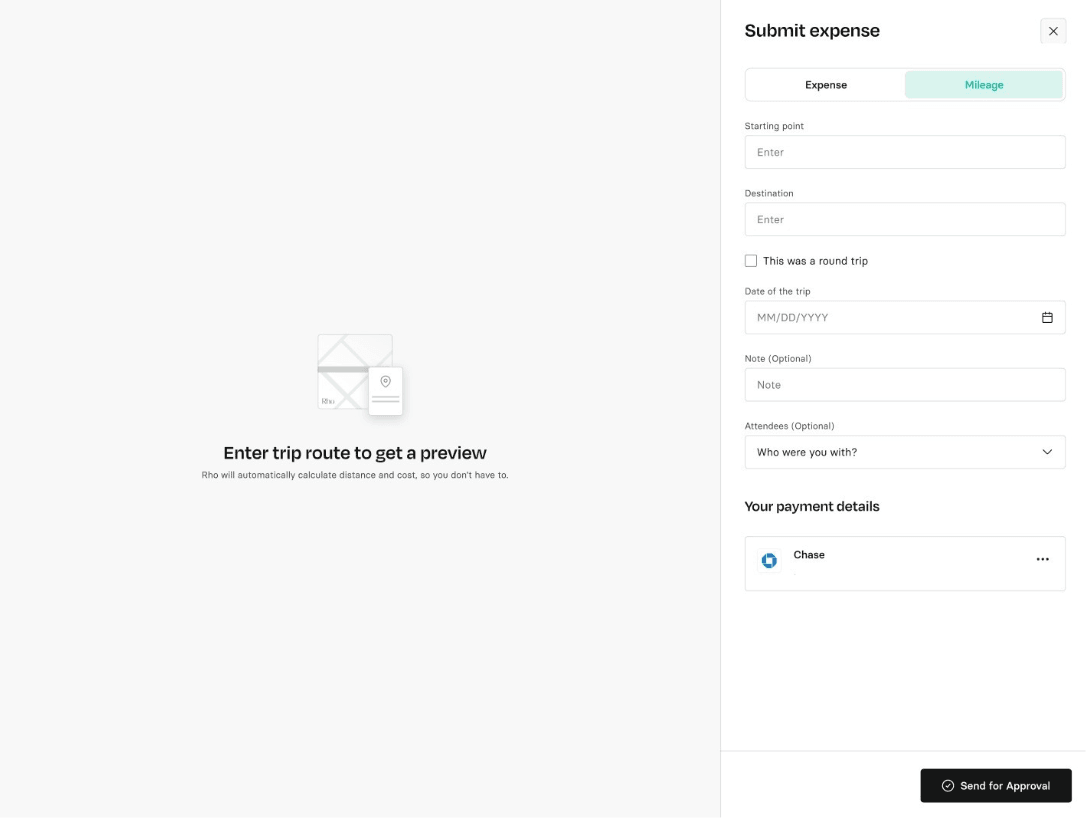
Route: You can easily input your start and end points of your route.. A route preview will be displayed, where an embedded map will automatically calculate mileage and your final reimbursement amount based on the mileage payout rate set by your administrator.
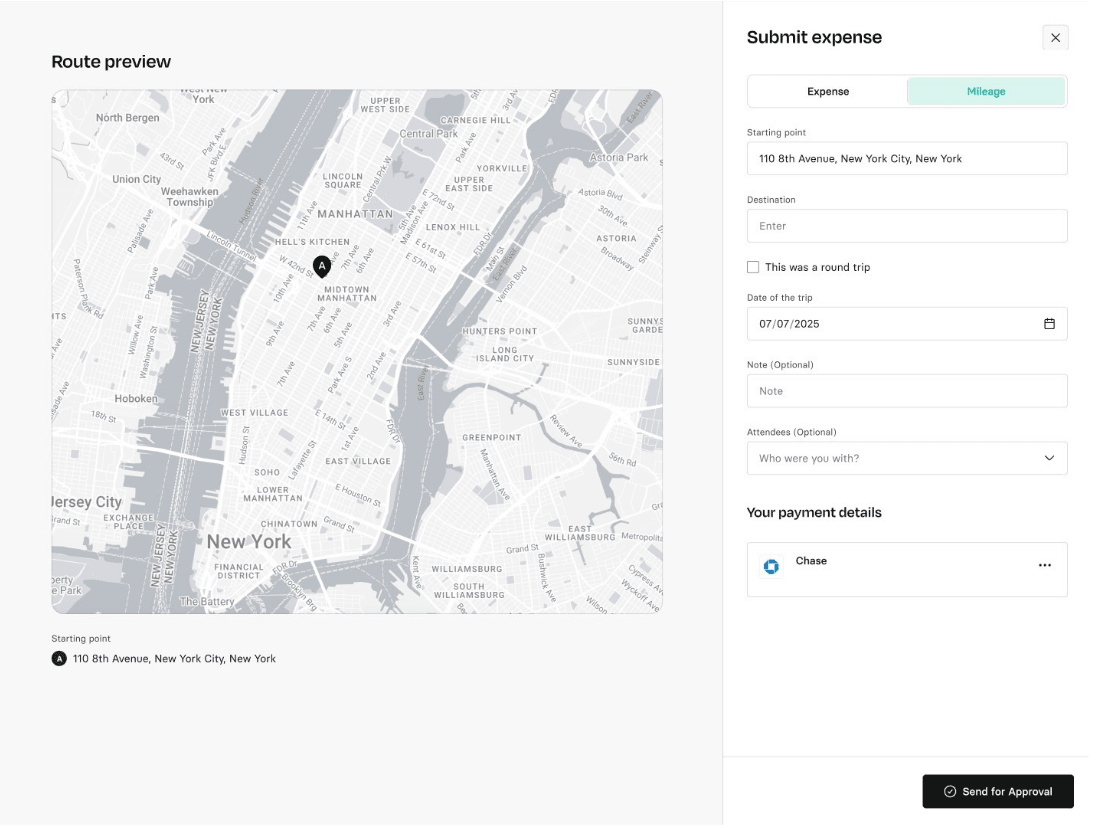
Note: Your mileage reimbursement will be calculated using the rate your business set when the expense occurred.

Under Payment Details, click Add Payment Account. Enter your bank details for where you would like to receive the funds. 

Note: This information is securely stored and not visible to other team members. Additionally, Rho processes reimbursements via ACH for domestic bank accounts only.

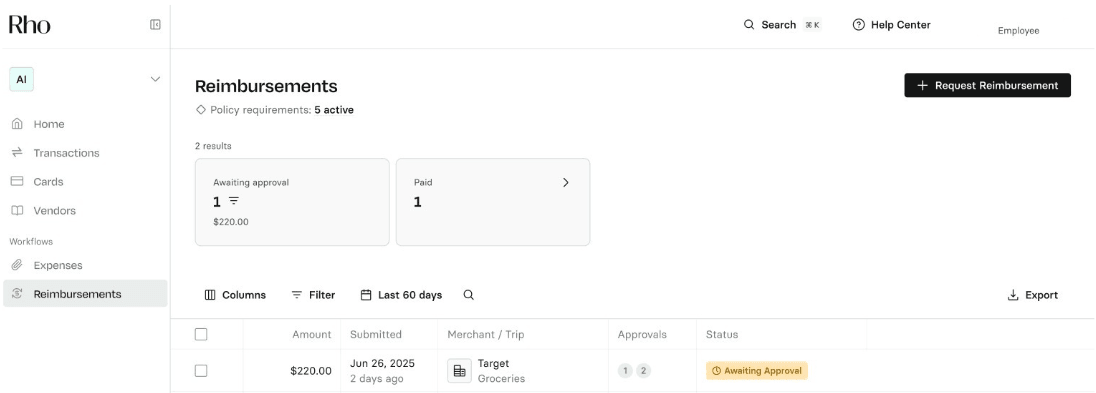
Click Send for Approval when finished. You'll then see your reimbursement request in your Reimbursements table in Rho.

How the reimbursement will appear

Verify that your request has the status Awaiting Approval, which indicates that it has been successfully submitted for approval. If your business has additional reimbursement requirements, you may be asked to provide additional documentation or information upon submission.
How to Ensure Mileage Reimbursements Sync Successfully to Your ERP via Rho

When using Rho to sync mileage reimbursements to your Enterprise Resource Planning (ERP) system, it is essential to have proper mapping rules set up to ensure transactions sync successfully. 

Here's how to set up an Accounts Payable (AP) Chart of Accounts for mileage reimbursements in Rho:

  • Connect Your Accounting Software to Rho

  • Before setting up mapping rules, ensure your accounting software is connected to Rho.

  • Navigate to Mapping Rules

  • Go to Integrations > Mapping Rules in your Rho account.

  • Select the Appropriate Entity

  • Choose the entity or subsidiary for which you want to set up the mapping rule.

  • Access Settings for Mapping

  • Click on Settings within the Mapping Rules section.

  • Set Up the AP Chart of Accounts

  • Scroll down to Other Accounts and find Rho Accounts Payable.

  • Select the account from your accounting software that represents your AP account for mileage reimbursements.

  • Save Your Changes

  • Ensure all changes are saved automatically or click Save Changes if required.

Note: If mileage reimbursements are categorized differently in your accounting software, you may need to create a specific AP account for these transactions or map them to an existing expense account that handles reimbursements. By following these steps, you can set up an AP Chart of Accounts for mileage reimbursements, allowing for successful synchronization of these transactions from Rho to your ERP system.

Note: You must select an address from the drop-down menu that appears as you enter the address. This ensures Rho can accurately measure the distance between destinations

Popular help center articles

Most read this week.

Accounting

How to set up Rho's QuickBooks Integration

The following instructions describe how to set up a direct integration between your Rho Account and your existing QuickBooks Online account. If you're interested in connecting Rho transactions via the QuickBooks Bank Feed, see instructions here . Note: this integration is only compatible with QuickBooks Online. For QuickBooks Desktop, you can download a CSV of transactions from your Rho account via these steps and upload them to QB Desktop). Once you are signed into the Rho platform, click Integrations in the navigation bar. Click the QuickBooks icon. Follow the login instructions to connect to your QuickBooks account. When finished, click Accounting in the navigation bar. Select the transactions you want to sync. Click the Sync button. When you connect Quick Books to Rho, a new account is added to your CHART OF ACCOUNTS tab named RHO [Checking Acct#] , where [Checking Acct#] is the 10-digit account number associated with the linked Rho account. This is your primary account and is required for automatic account reconciliation. You can rename this account, but integration between your Rho account and Quickbooks will not work if the account is deleted. What information can I view in the Accounting Tab? Once you have connected QuickBooks to Rho, use the Accounting Tab in the Rho platform to manage mapping rules, view transactions, and make necessary changes. The Accounting Tab includes two subsections Dashboard and Mapping Rules. Learn more about what you can view in the Dashboard here and about what you see in the Mapping Rules here. Important Integration Notes Syncing with your QuickBooks account is a manual process. Each time you want to reconcile your Rho Account in QuickBooks, you must click the Sync button. However, you can set up automatic recurring syncs by going to the settings tab within your accounting workflow and setting a recurring sync.

General Rho Information

How Do I Contact Support?

Reach out to our dedicated Rho specialists anytime over the phone at 1 (855) 7-GETRHO, through email at clientservice@rho.co, or start a live chat by logging into your Rho account (web or app), clicking the Help button in the lower left, and selecting 24/7 live support.

Cards

How to Add Your Rho Card to your Digital Wallet

Your virtual & physical Rho cards can now be added to your Apple or Google Wallet for a quick, contactless, and secure way to pay. Note: Currently, we don't support adding Rho cards to WeChat. Set up is simple - follow the steps below to get started: Apple Wallet Go to your Wallet app and click the + button in the right-hand corner. Select the Card Type “Credit”. Hold your Rho physical card's chip near your device or place it directly on the screen. For a virtual card, choose the “Enter Card Details Manually” option to add your card. Verify your card details are correct and enter your 3-digit CVV security code. You should notice the "Card Added" confirmation after a few moments. For your added security, you may be asked to verify your Rho Card account via two-factor authentication by “Text Message”, “Email”, or "Authenticator App", if you have set it up. A six-digit code will be sent to your email address, phone number on file, or the Authenticator App, enter your code in the field provided. Your Rho Card is now active in your Apple Wallet and ready to use at contactless point-of-sale terminals that support Apple Pay. For more information, see Apple’s support document . How to use your Rho Card in Apple Pay at a contactless point-of-sale terminal Select your Rho Card via the Apple Wallet app. Double-click the right-hand button on the side of your iPhone when a near contactless point-of-sale terminal. Verify your identity using Face ID or your Passcode. You will now be prompted to hold your phone near the contactless reader. Hold near the reader until the purchase has been completed. Google Wallet Your virtual & physical Rho cards can now be added to your Google Wallet on your Android device for a quick, contactless, and secure way to pay. Set up is simple - follow the steps below to get started: Open your Google Pay (GPay) app on your Android device and click the image of a card in the right-hand corner. This will open a screen that shows you all the cards you have linked to your wallet. Select “Add a Card” at the bottom of the screen. Select the Payment Method “Credit or debit card.” Take a picture of your Rho physical card or the virtual card in your Rho dashboard. Your phone will recognize your card details and then you must enter your 3-digit CVV security code. Alternatively, you may enter your card details manually. Make sure your address, ZIP code, and phone number match your settings in your Rho account. The address should be your organization’s billing address. Press Save. Review Rho’s Terms & Conditions and click “Accept & continue.” For your added security, you may be asked to verify your Rho Card account via two-factor authentication by “Text Message” or “Email.” After you receive your six-digit verification code by text or email, enter it and click Submit. Your Rho Card is now active in your Wallet and ready to use at contactless point-of-sale terminals that support Google Pay. For more information visit the Google Pay Help Center

Mobile App

How to Upload a Receipt in the Mobile App

You can add receipts to all Rho Card transactions within the app ( in addition to desktop, email, and SMS uploads ). To add a receipt, open the Rho app and tap on the transaction requiring a receipt. In the Attachments section, click "Upload Receipt" and choose one of the following options: Select an image from your camera roll Take a photo of your receipt using your camera Select and upload a file Note: Be sure to include any applicable tip amount on your receipt. In the transaction details window, you can also add departments, labels, and notes to your transaction.