Viewing Account Balances at a Glance
You can quickly see the total balances across all your Rho accounts right from the Home tab using the dropdown widget:
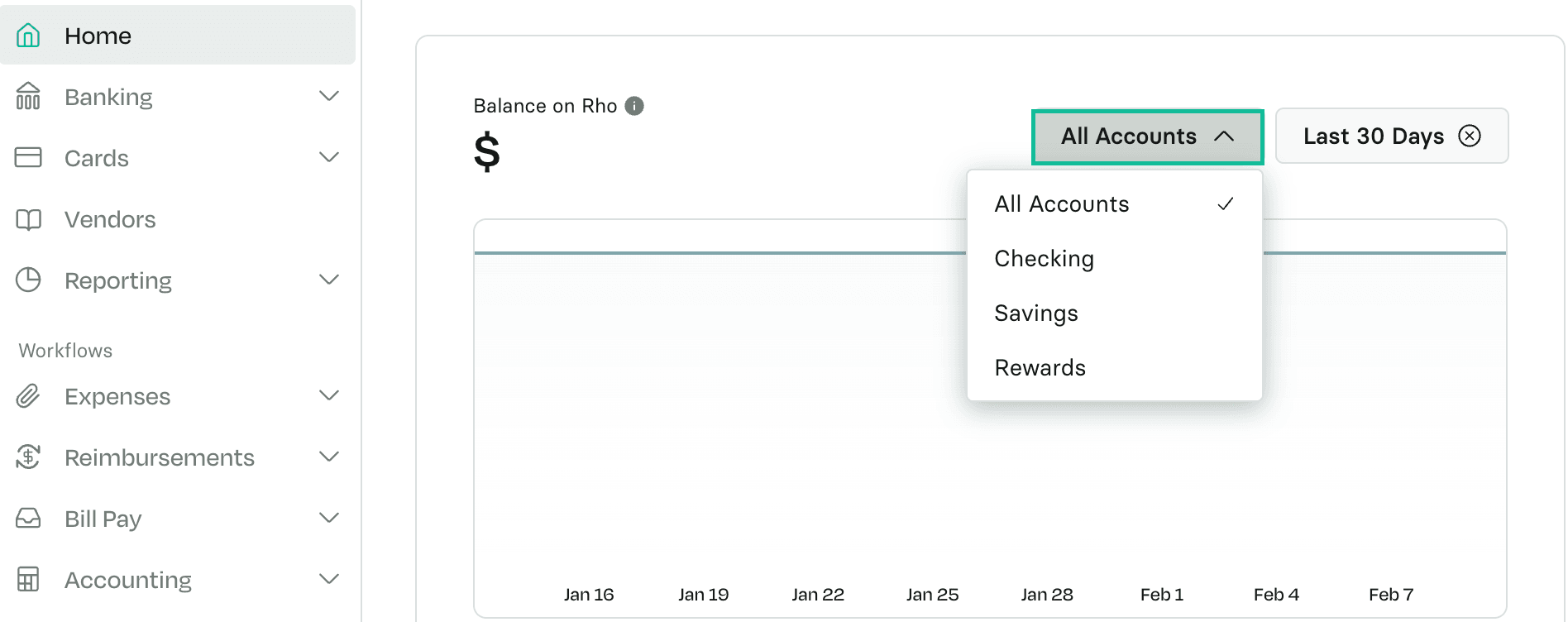 This will give you a clear snapshot of available funds without requiring you to navigate away.
All Accounts overview
For a deeper look at your finances, head to the Banking tab right below Home from the navigation sidebar.
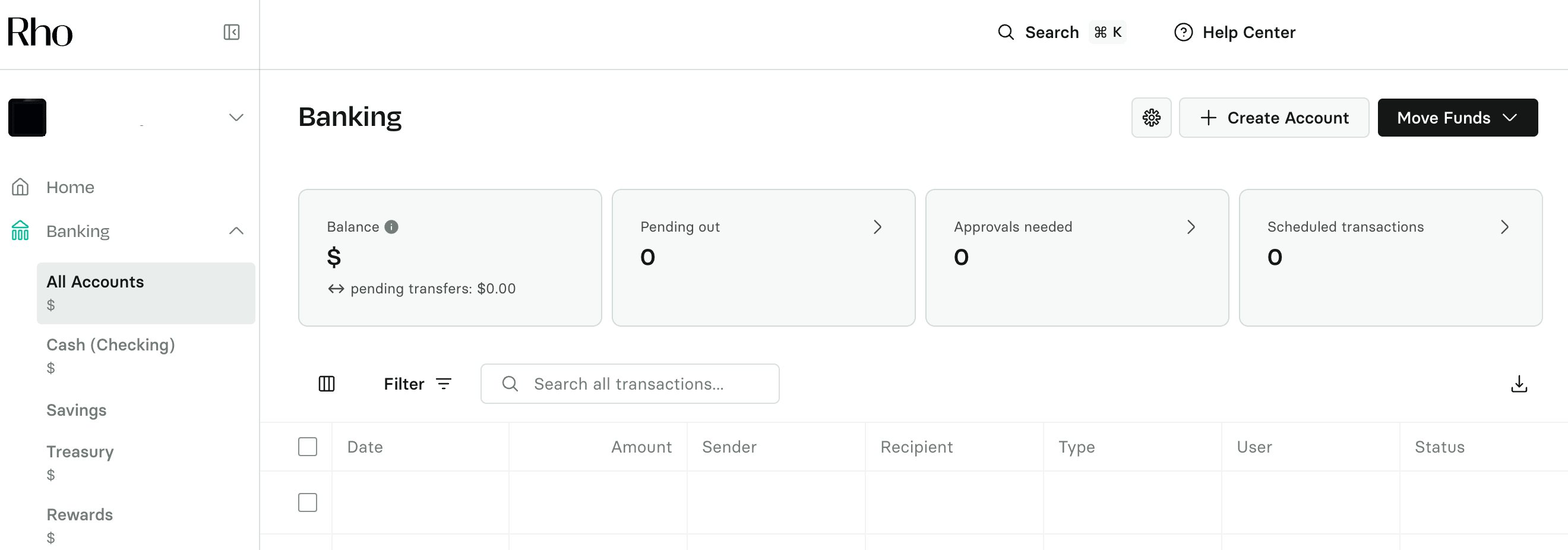
At the top of the page is an overview of all of the transactions, approvals, and payments across all of your Rho accounts. Click on any of the categories for expanded details on a new page:
For example, click Pending out to open the outgoing pending transfer activity page.
To view the details for a specific transaction, click on the transaction to view the information in the Transaction Details window.
Viewing A Specific Account
Once you select a specific account from the dropdown (as an example, Checking), your balance will automatically update and display in the following format:
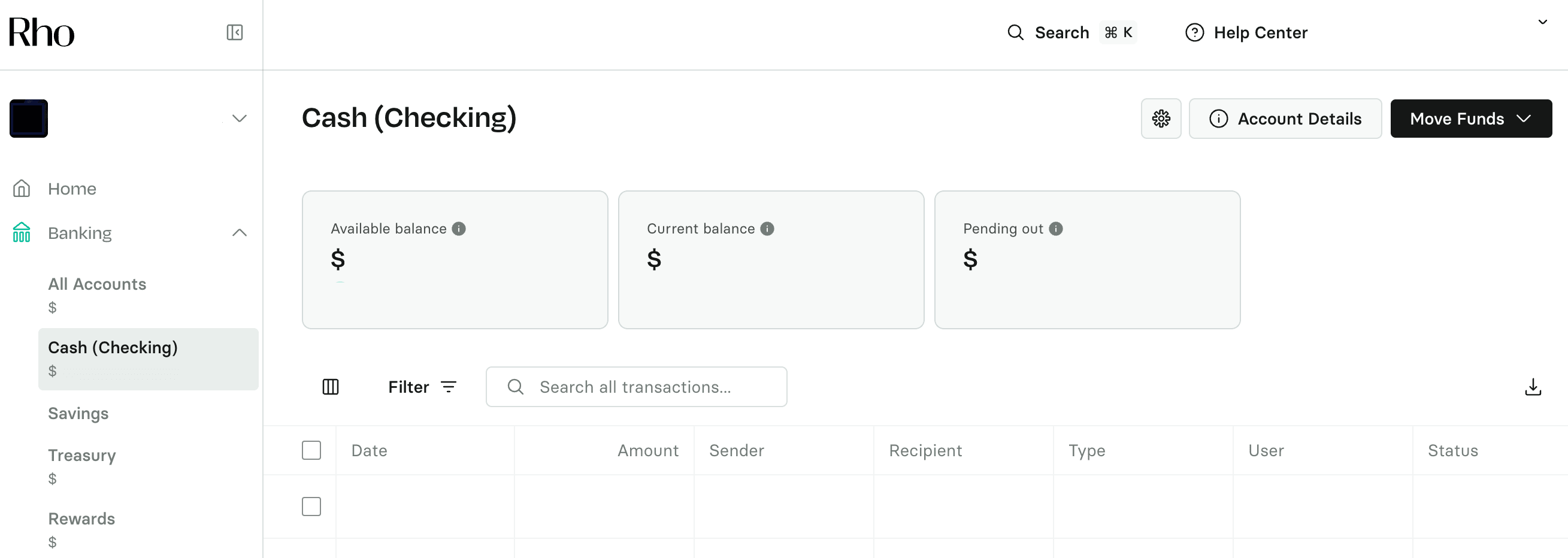 You’ll find here a comprehensive overview of your selected account, including your Available Balance, Current balance, and pending debits (Pending out). This makes it easy to keep track of your cash position and monitor account activity in real time.
Additionally, you can:
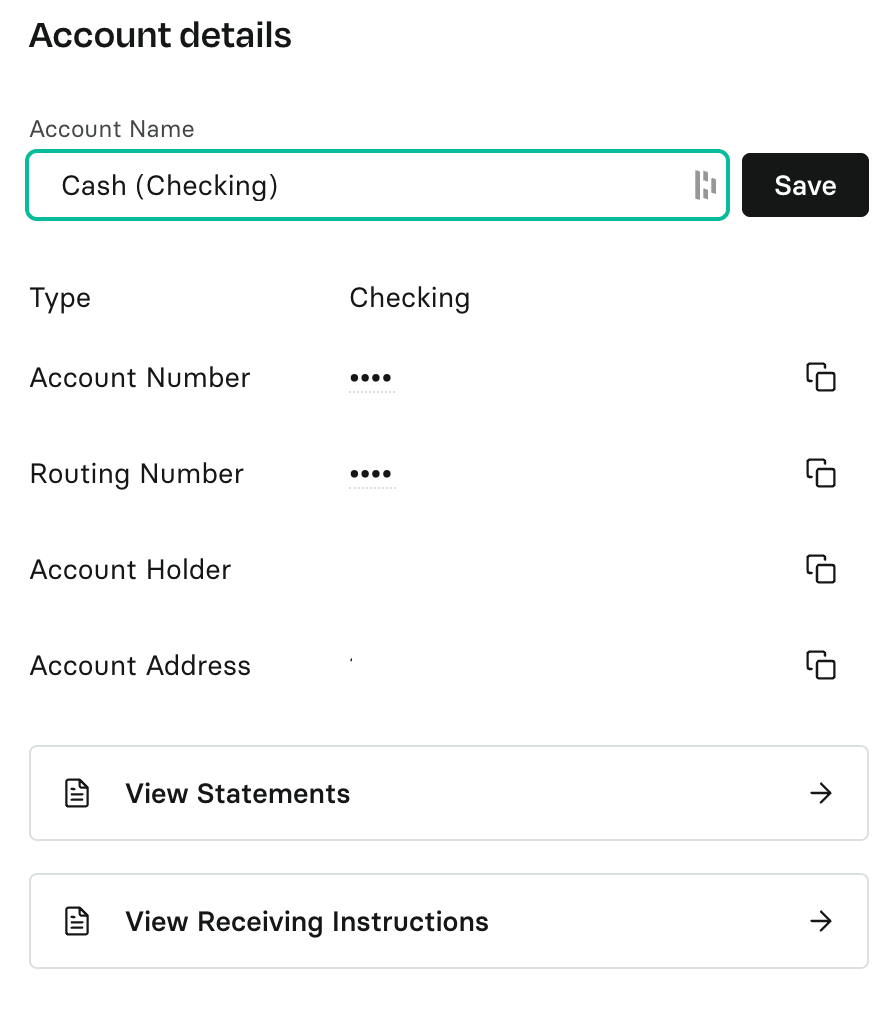
Click the gear button next to “Create Account” in the top-right corner to view account statements & payment instructions.
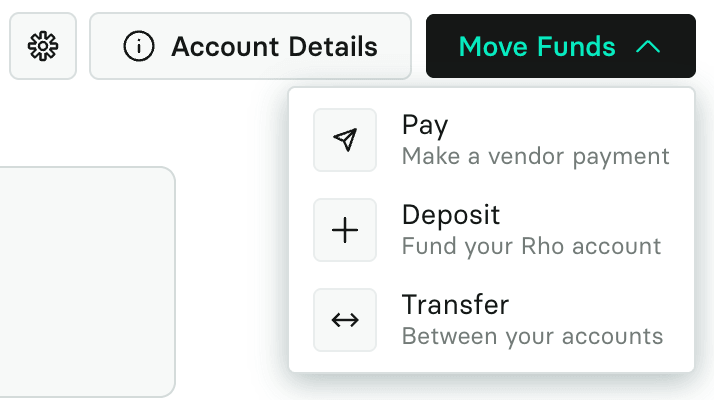
Click Move Funds to make a payment, deposit funds, or transfer funds between Rho Checking, Savings, and Treasury Accounts.