
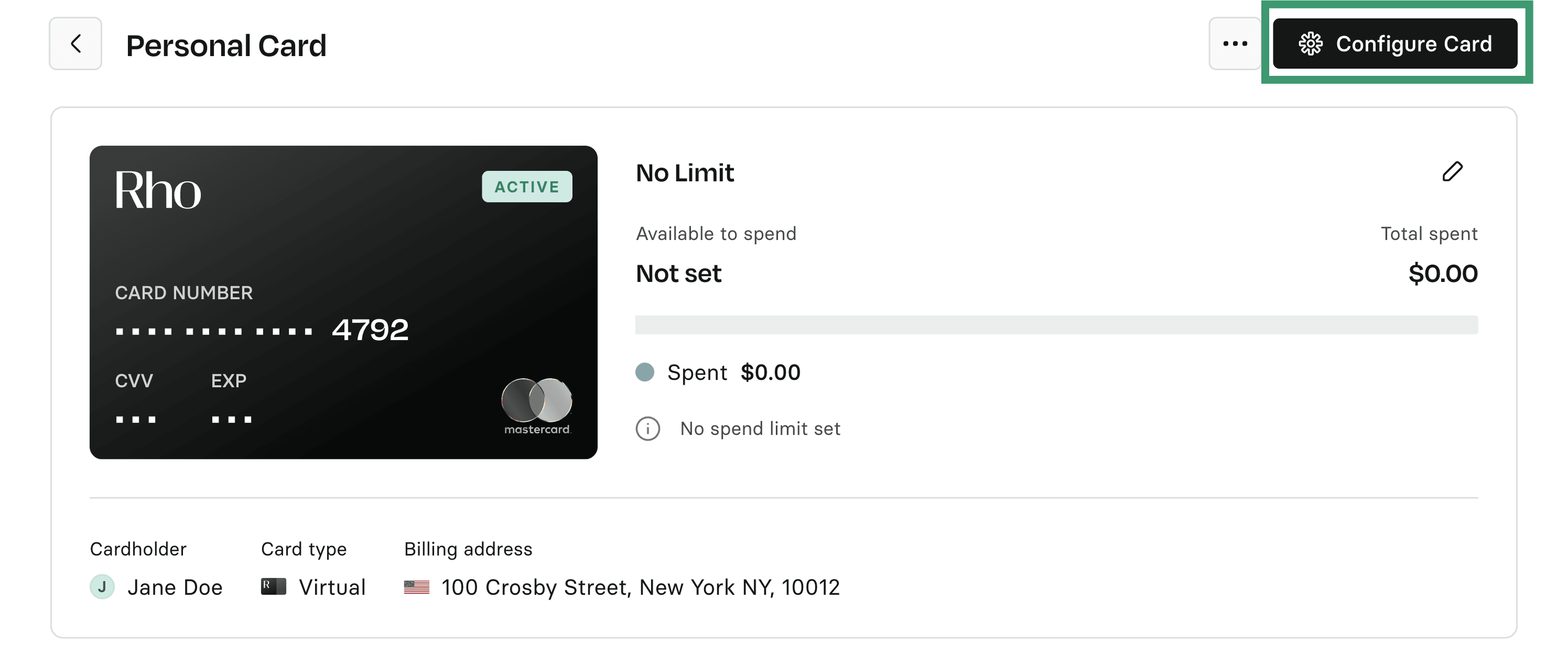
This page lists all of the spending, credit, and transaction details about the selected Rho Card and is displayed when you select a specific Rho Card from the All Cards tab.
Card Configuration
To edit the settings for the card, click the Card Configuration button. For more information about Card Settings, see Updating your Card Settings.
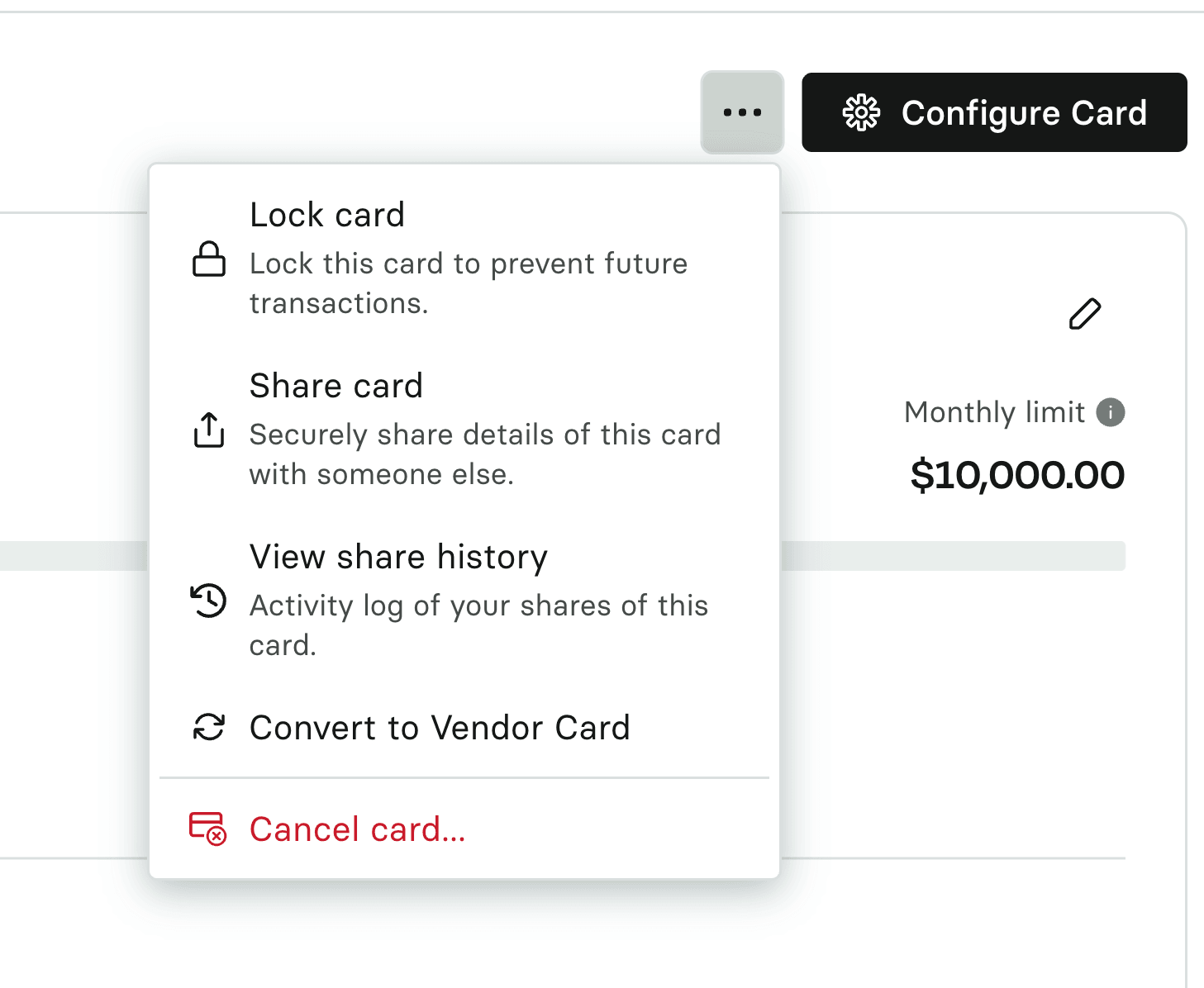
Unlock, Lock or Cancel a Card
From the Card Details page you can activate or deactivate your Rho Card using the Unlock/Lock Card feature.
To activate a Rho Card that is currently inactive, click the three dots (⋯) and select Unlock Card. The Rho Card is now listed as Active and can be used for transactions.
To deactivate a Rho Card that is currently active, click the three dots (⋯) and select Lock Card. The Rho Card is now listed as Locked, and can no longer be used for transactions.
To cancel your Rho Card, click the three dots (⋯) and select Cancel Card. The Rho Card is canceled, and can no longer be used for transactions. If you're canceling a virtual card, you will have an option to cancel and transfer your card subscriptions to a new Rho card.
Note: Once you've canceled your Rho Card, it cannot be reactivated.
View Card Details
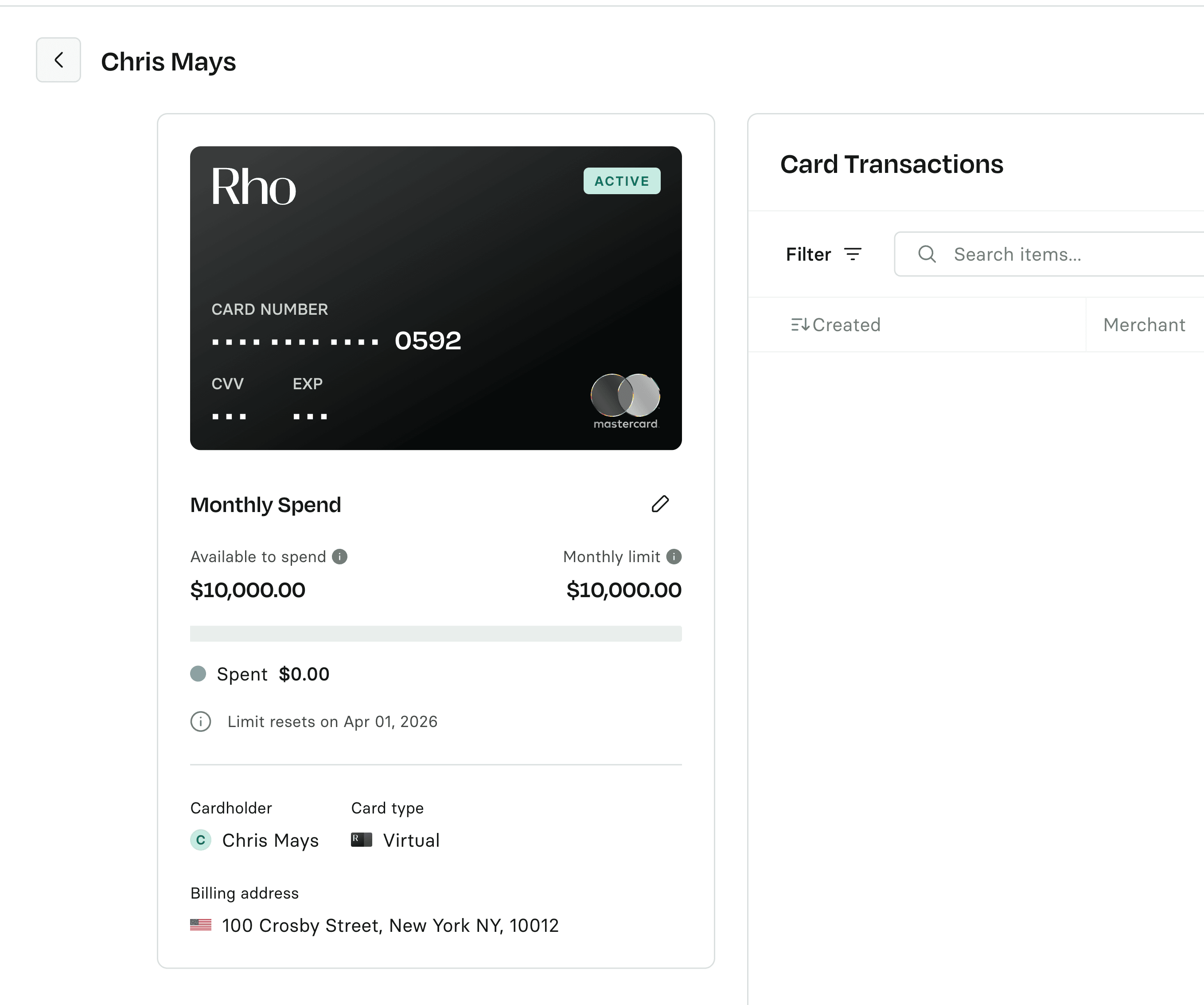
Cardholder Name: The name is associated with the Rho Card.
Billing Address: The address and zip code to enter on your card purchases.
Card Type: Whether the Rho Card is a physical card or a virtual card.
CVV (only for virtual cards): The card verification value (CVV) for your Rho Card.
Expiration Date (only for virtual cards): The date when the Rho Card is scheduled to expire.
Card Number (full number only for virtual cards): The full Rho Card number that is entered for all transactions.
Transactions
The Card Details page includes a table that displays the most recent transactions for your Rho Card. To view all transactions for the table, click the View All button.