
The All Cards page displays a list of all active, inactive, and canceled Rho Cards that have been issued for any member of your business. This page can only be viewed by users with an Admin or Bookkeeper role. The All Cards page features a customizable table that can be altered to display specific values or card information categories.
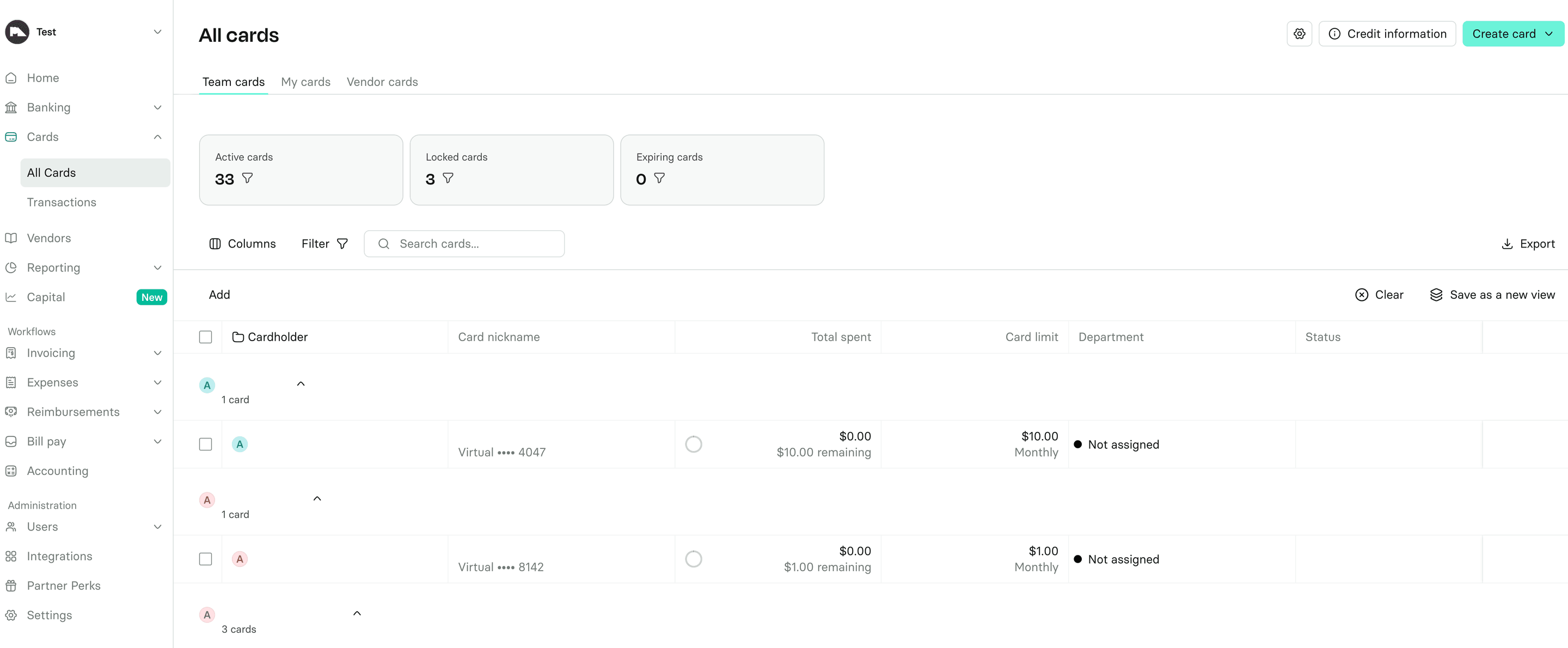 To view details for a specific Rho card, select the card from the table to open its Card Details page. For more information, see Understanding the Card Details page.
Managing expiring cards
On the All Cards page, select the Expiring cards tile to view cards eligible for replacement. Open a card to update its shipping address during the eligibility window. You can update the address multiple times before the replacement is sent, and optionally save it for future replacement cards for that cardholder.

Table Actions
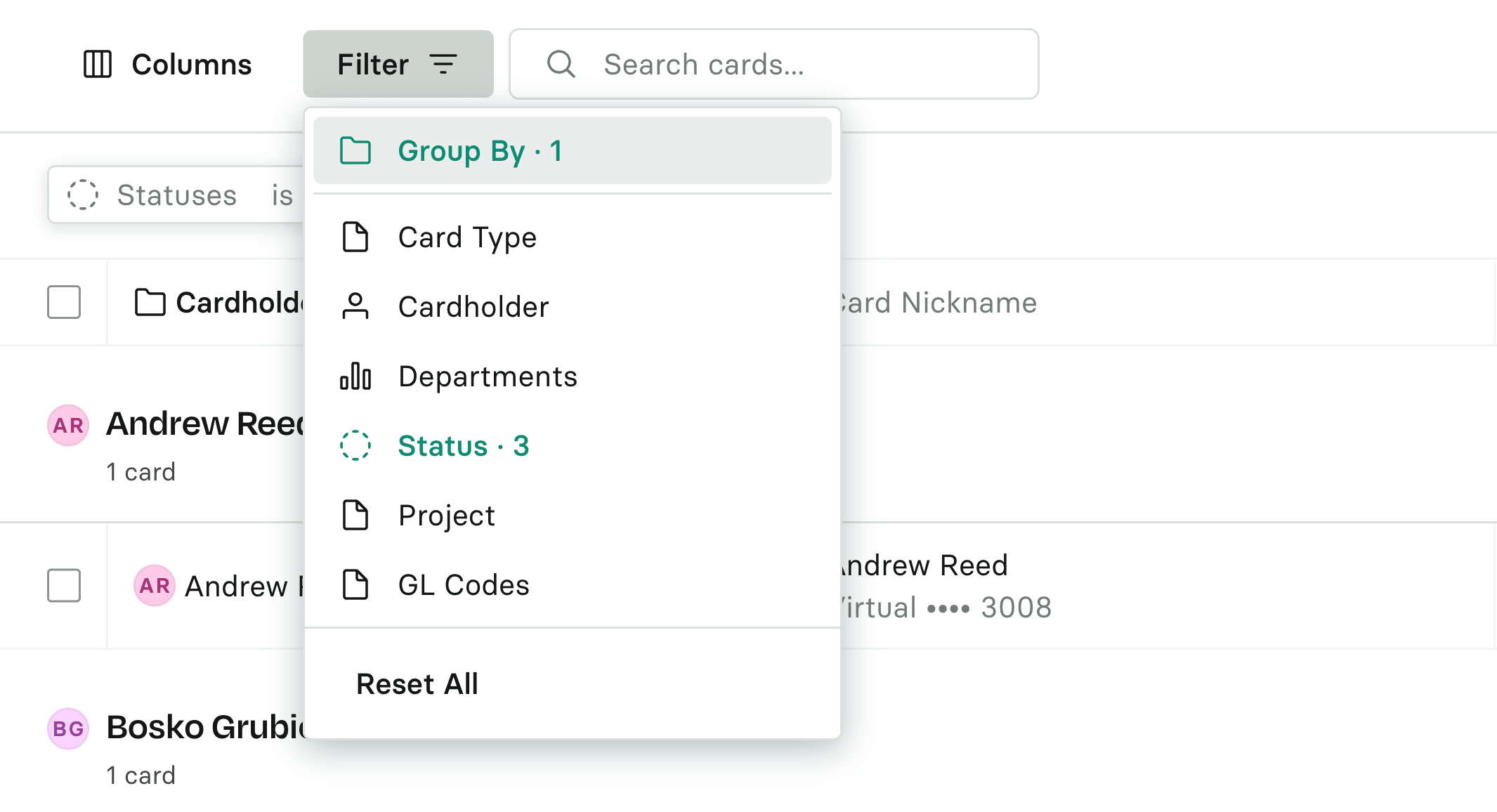
Filter
Click the Filter icon to display the values you can filter for. Click your desired value and enter the relevant type or name you would like to view.
Columns
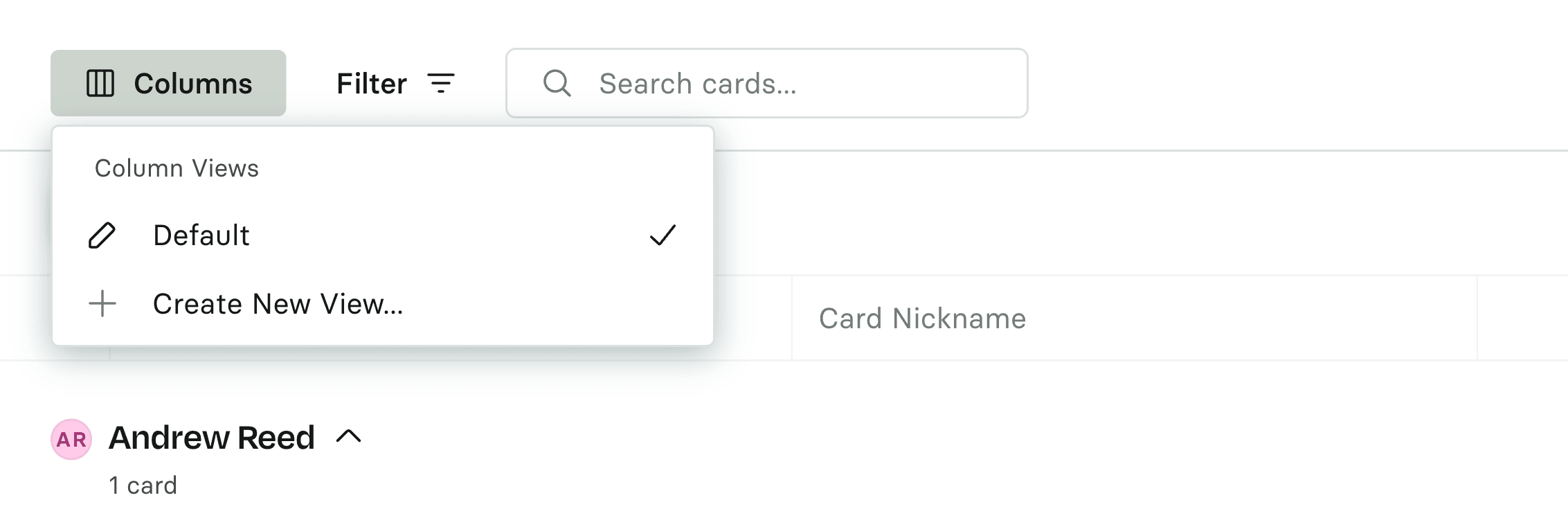
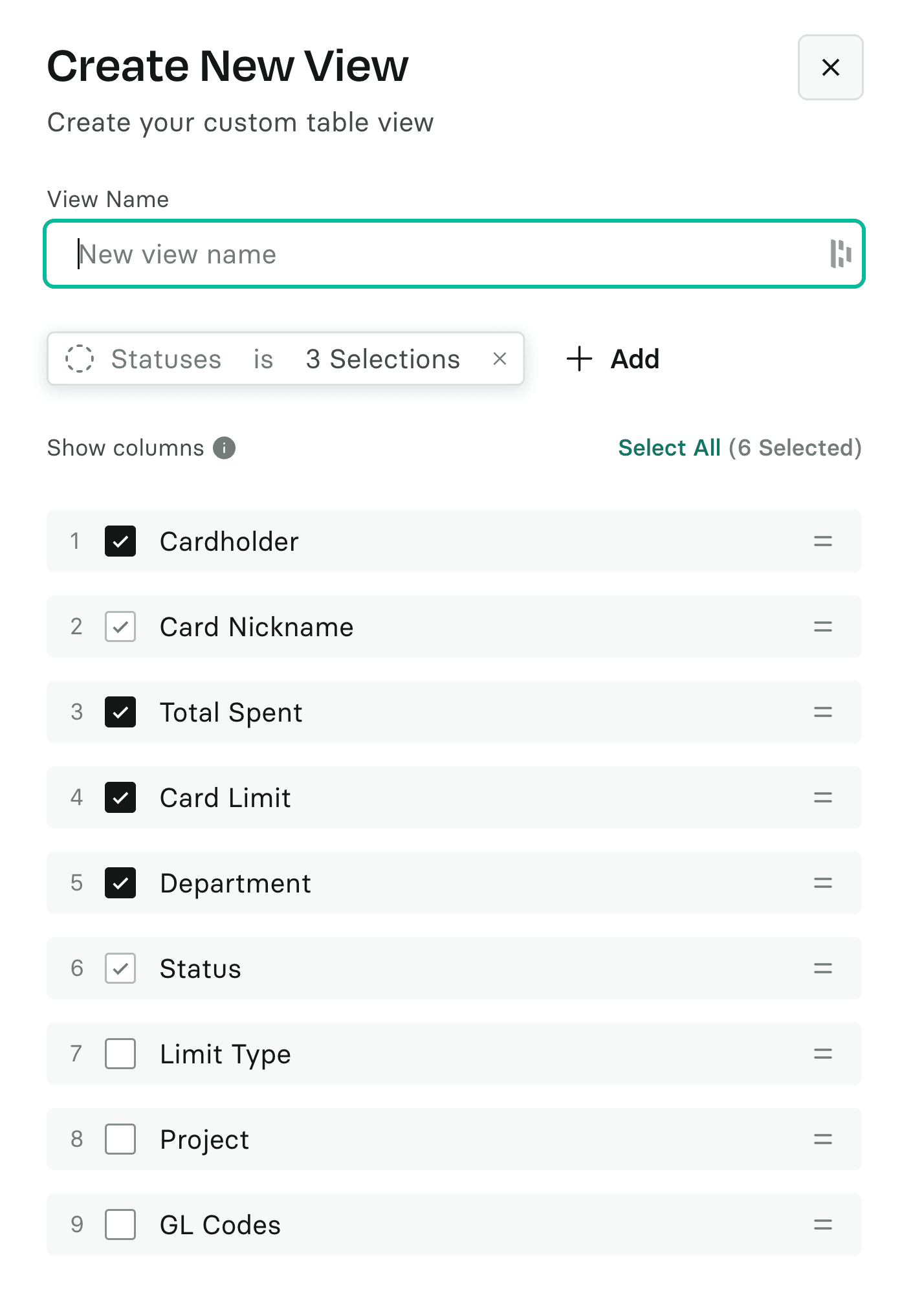
Click the Columns icon to create a New View. In the pop-up window, you can select which fields you’d like to display—such as Cardholder, Total Spend, or Card Limit.
Once created, this view will add customized columns to your Cards page for easier navigation. You can switch to this view at any time.
Search
To search for a specific card name, click the Search field and enter the desired search term.
Note: By default, when a Rho Card is created, the Card Name is the first and last name of the user who is assigned the card.
Bulk Select
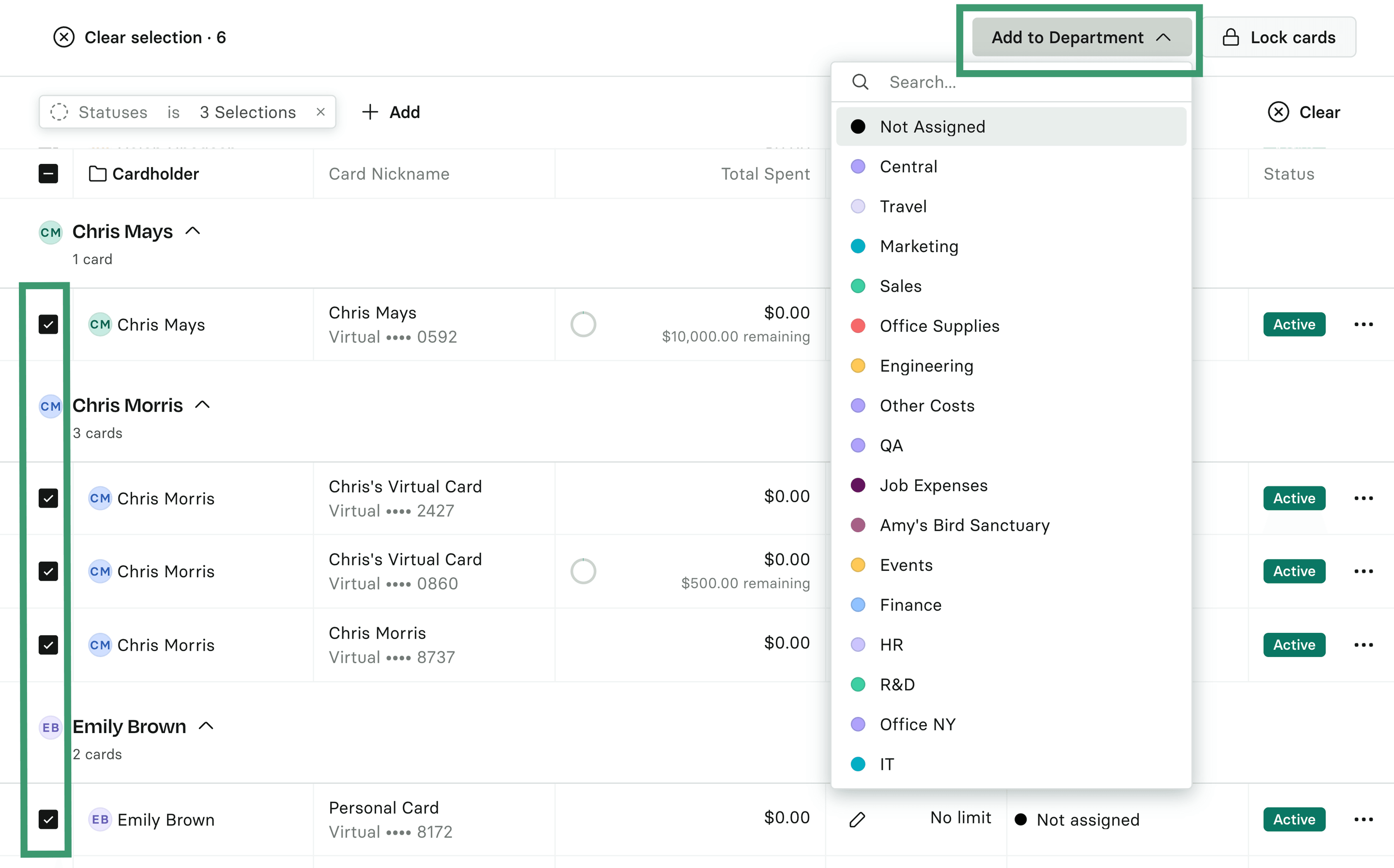
Bulk select cards by clicking the box on the far left of your desired card line. Once cards are selected, click the Add to a Department button in the left corner to assign them to a specific Department.
My Cards tab
On the My Cards tab, the following details are viewable, either from the table or from Card Details:
Card Name: The name of the card. By default, the card name is your user name. To change the card name, see Can I change the name on my Rho Card?
Last 4: The last four digits of the card.
Status: The current status of the card (Active, Inactive, or Cancelled).
Department: The department assigned to the Rho Card. To change the department assigned to the card, see How to Assign a Card to a Department.
Spend Account: The checking account assigned to the card. All transactions using the card are paired with this account. Currently, cards can only pair with funds from the Rho Primary Checking account for your organization only.
Card Type: Lists whether the Rho Card is a physical card or a virtual card.
Spend Limit: The maximum amount of money that can be spent using the Rho Card, if specified.
Period Spend: The amount of money spent using the Rho Card during the current period.